Keyboard-First Capture: Shortcuts and the Floating Capture Bar in a Mac Screenshot Tool
The fastest screen capture on Mac starts from the keyboard, not the mouse: F13 to snap, Option+Shift+W to grab a window, Option+Shift+H to bring back the floating capture bar. Here is how SnapMatrix, the Mac screenshot tool I built at Chilview LLC, is designed to work keyboard-first. Verified November 4, 2026.
By Md Alam, Founder of Chilview LLC
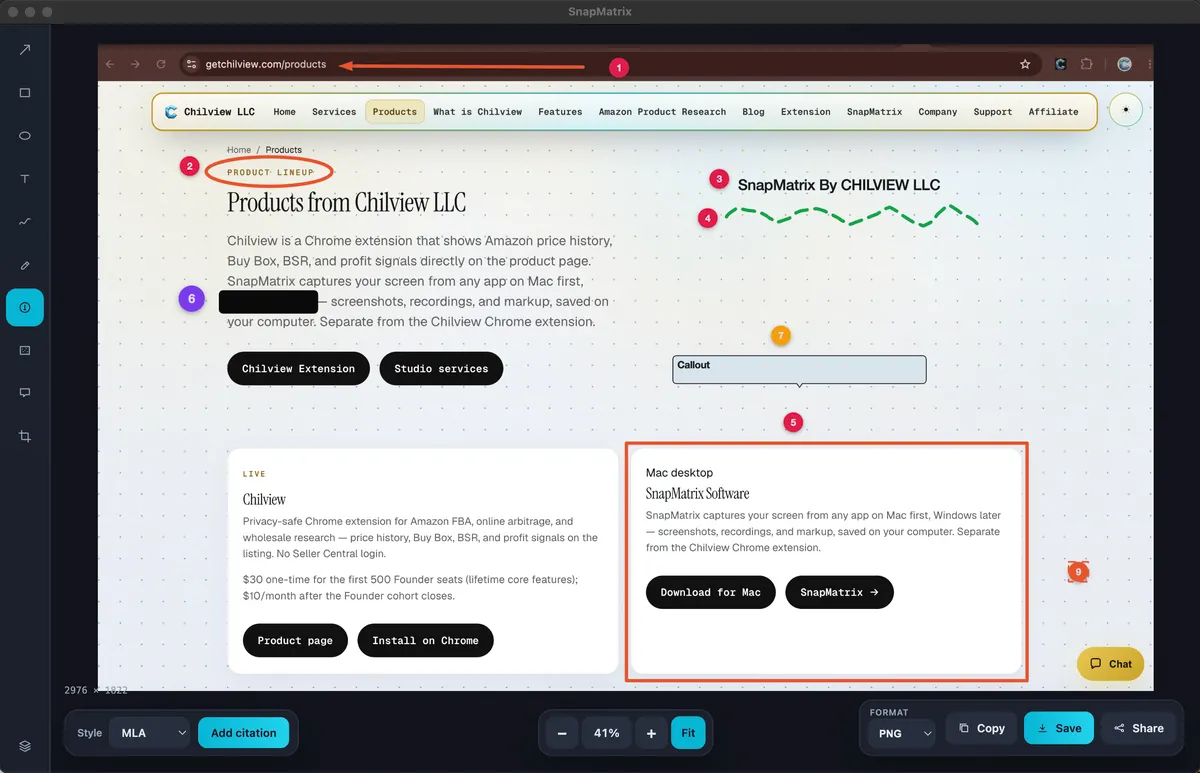
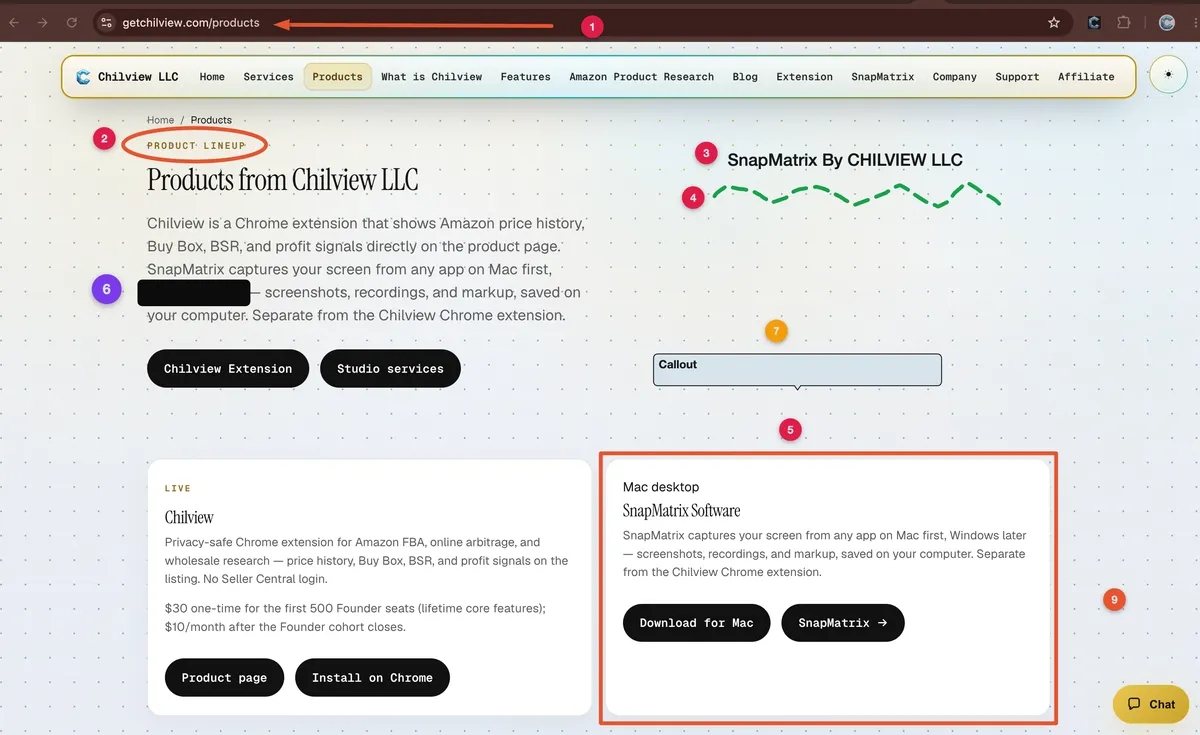
Article image: the SnapMatrix annotation editor at workspace/goals/chilview-outreach-pipeline/files/brand-assets/snapmatrix-annotate-demo-2-linkedin.png — a capture being marked up with annotation tools. Embedded below at reduced size; upload the original file to Medium.

Keyboard-first capture means the screenshot is taken, routed, and often finished before your hand leaves the keyboard: one hotkey snaps, a preset decides what happens next, and the capture bar is already floating where you need it. That is the standard I build SnapMatrix to — a screen capture tool you have to go and fetch with the mouse is a tool you stop using in the middle of real work.
I am Md Alam, founder of Chilview LLC, and I built SnapMatrix after years of the same small friction. I would be writing, testing, or answering a support thread, need one screenshot, and lose my place to a mouse hunt through menus and app windows. The fix was not more features. It was putting the capture I already used every day onto keys, and onto a bar that never hides.
Three hotkeys do most of the work
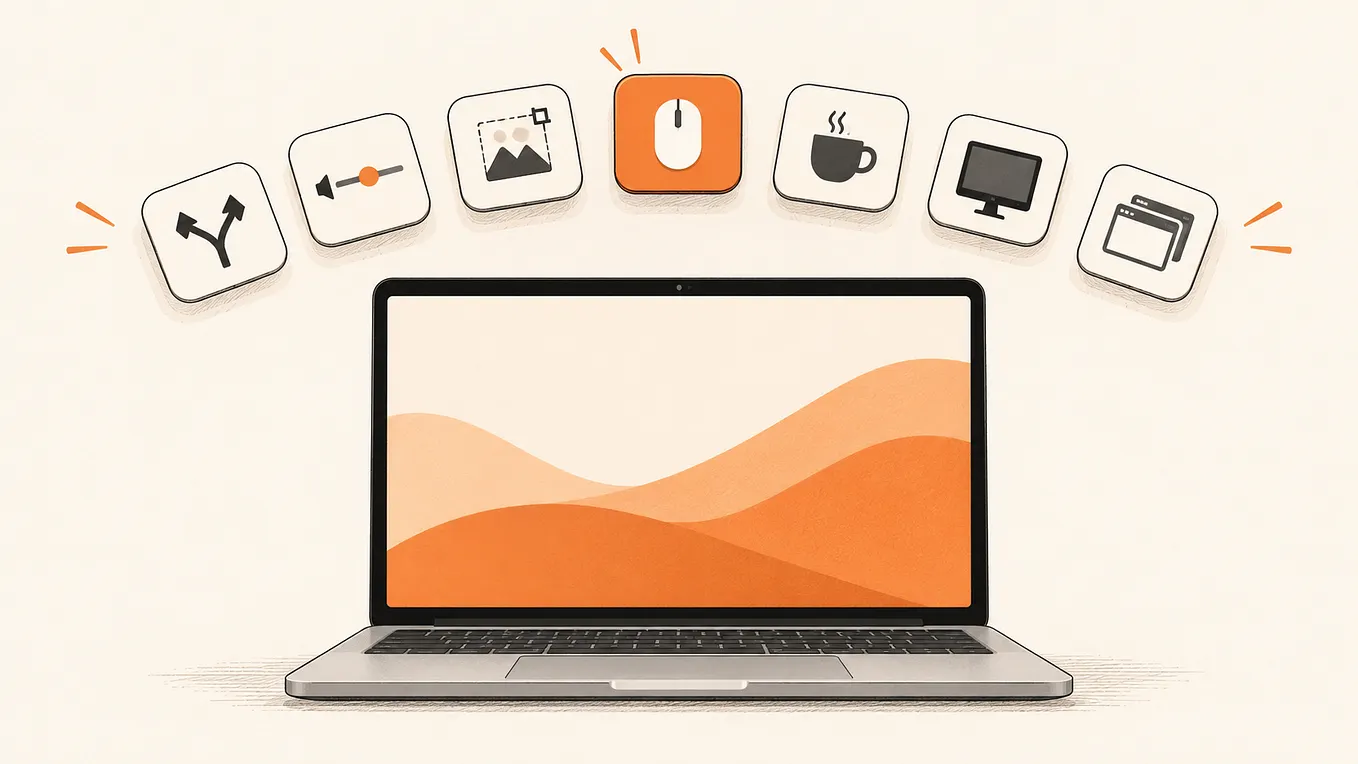
SnapMatrix runs on three hotkeys. F13 is Snap — press it and the current capture mode fires. Option+Shift+W captures just the window, no cropping afterwards. Option+Shift+H shows the capture bar again, wherever you left it, if you minimized it or buried it under other windows.
That third one matters more than it sounds. A floating tool is only useful if calling it back is instant; a show-bar hotkey means the bar is never more than one chord away, in any app, in the middle of any task. Learn these three and most days you never open a menu at all: snap, window, bar. Everything else on the bar is for the days that are not most days.
A capture bar that floats, turns, and stays out of the way
The capture bar is a small floating overlay — horizontal or vertical, always on top of other apps — holding Display, Region, Window, and Full page capture, a Record button for screen recording, microphone and camera toggles, and shortcuts to the Library, Settings, and a More panel. Vertical suits a wide monitor where the bar can live along an edge; horizontal suits a laptop. Because it floats above your work instead of living inside one app, the capture starts from the app you are already in.
Presets and delays: decide once, capture all day
Get Md Alam’s stories in your inbox
Join Medium for free to get updates from this writer.
Keyboard-first only works if the decision is made before the moment. SnapMatrix presets set what a capture does: Quick copy sends the shot straight to the clipboard, Edit shot opens it in the annotation editor, Timed region pairs a region capture with a delay, and Full page runs a scrolling capture. Delays of 3, 5, or 10 seconds cover the captures a hotkey alone cannot — hover states, open menus, tooltips that vanish when you move. Two more settings finish the routing: open the editor after capture, and copy to the clipboard after capture. Set them once, and after that the hotkey press is the whole interaction.
Keyboard-first does not end at the still image
Full page is where I hold this app to the hardest standard. Scrolling capture stitches a long page into one image, in Auto or Manual mode. Earlier this week I pulled Auto back after my own testing showed stitching faults; I fixed the scroll-and-settle logic and re-verified it today, November 4 — both modes ship, and Sticky bars hide a page’s fixed header during the capture so it is stitched in once, at the top, instead of stamped over every section.
The same bar starts screen recording — a display or a window, with optional microphone and a webcam bubble, a countdown before it starts, and Pause, Stop, and a timer while it runs; afterwards you trim the ends, zoom from 1× to 2.5×, or export a GIF of roughly the first 8 seconds. And when you need the words instead of the picture, Grab Text is a capture mode in the bar: select a region and SnapMatrix extracts its text with on-device OCR through Apple Vision — nothing is uploaded — into an editable results panel. Grab Text is part of the paid plan. The annotation editor, pictured above, completes the flow: arrow, rectangle, ellipse, text, draw, highlighter, numbered steps, redact and blur, callout, and crop, with a layers panel, and custom resolution editing for images and recordings alike.
Filed on your Mac, cited when you share it
Fast capture creates a pile problem, so captures live in the on-Mac Library: a local grid searchable by title or project, with tags and collections, which also builds a Guide and a Bibliography from your captures. In the editor you can attach a citation in MLA, APA, or Chicago style, so a screenshot carries its source when it leaves the machine. SnapMatrix sends no captures and no personal machine data to Chilview; if you want a backup, you can point it at your own HTTPS API or your own Supabase.
A quick test if you are comparing Mac screenshot tools
Many Mac users are re-checking their screenshot tool this year: TechSmith is folding Snagit into the Camtasia suite as Camtasia Snagit, and owners of the last perpetual Snagit versions without a Legacy subscription lose support on December 31, 2026. CleanShot X is the other name people test, and SnapMatrix is mine. Whoever you evaluate — Snagit alternative or not — run the same keyboard test: from “I need this shot” to “shot filed,” how many times did your hand leave the keyboard, and how many clicks did it take? Workflow beats feature counts, because workflow is what you feel fifty times a day.
Price, last and plainly
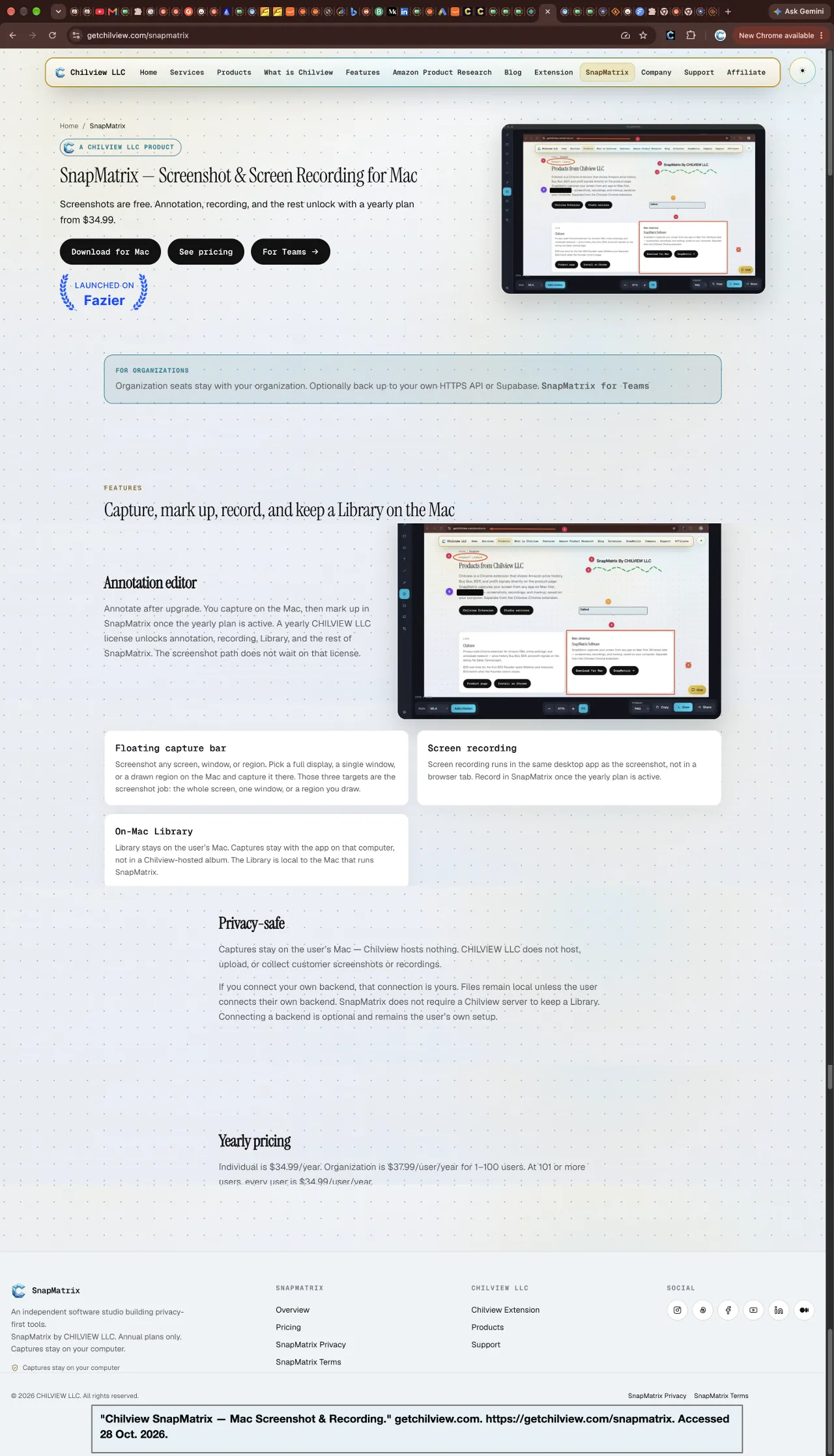
SnapMatrix screenshots are free forever — Display, Region, Window, and Full page, staying on your Mac. The paid yearly plan unlocks annotation, recording, and Grab Text, plus Guide and Bibliography building: $34.99/year individual, $37.99/user/year for organisations of 1 to 100, dropping to $34.99/user/year at 101 or more. Mac only, with Windows planned for June 2027. If keyboard-first capture is all you need, the free tier already covers it.
Try SnapMatrix free
Download SnapMatrix for Mac: https://getchilview.com/snapmatrix — screenshots free forever; yearly plans unlock annotation, recording, and Library.
— Md Alam, Founder, Chilview LLC · https://getchilview.com · support@getchilview.com