Mobile Penetration Testing

Purpose: A practical, beginner-friendly reference for reviewing the four : Java fundamentals, cryptography and Android fundamentals, mobile pentesting tools, and Android components/static analysis.

Table of Contents
- How to Use This Guide
- Session 01 — — Java Fundamentals
- Java Execution Flow
- JDK, JRE, and JVM
- Classes, Main Method, and Output
- Variables and Data Types
- Operators and Conditions
- Loops
- Methods, Access Modifiers, and Inheritance
- Why Java Matters in Android Pentesting
- Session 02 — — Cryptography & Android Fundamentals
- Cryptography, Encoding, Hashing, and Encryption
- MD5, SHA-1, and SHA-256
- Password Hashing and Cracking Concepts
- Symmetric Encryption: AES and DES
- AES Modes: ECB, CBC, and GCM
- Android Studio and Android Architecture
- Session 03 — — Mobile Pentesting Tools & Setup
- Lab Setup and Device Options
- ADB
- Logcat
- scrcpy
- APKTool and JADX
- MobSF
- Frida and Objection
- Burp Suite and HTTPS Traffic
- Rooting and Safety
- Session 04 — — Android Components & Static Analysis
- Activity Lifecycle
- The Four Main Android Components
- Exported Components and Permissions
- APK Structure
- Extracting and Inspecting an APK
- Static, Dynamic, and Network Analysis
- Rebuilding and Signing an APK
- Mini Practical Lab
- Quick Checklist
- Image Prompt Library
- Glossary
Session 01 — — Java Fundamentals
1. Java Execution Flow
Java source code is usually saved in a .java file. The Java compiler converts it into bytecode in a .class file. The Java Virtual Machine (JVM) executes that bytecode.
Hello.java --javac--> Hello.class --JVM--> Program outputExample file: Hello.java
public class Hello {
    public static void main(String[] args) {
        System.out.println("Hello, Android Security!");
    }
}
Compile and run:
javac Hello.java
java Hello
Expected output:
Hello, Android Security!What to understand: .java is human-readable source code; .class contains Java bytecode. Android applications commonly contain DEX bytecode (classes.dex) rather than only ordinary JVM .class files.
2. JDK, JRE, and JVM
- JDK (Java Development Kit): Development tools, including the Java compiler.
- JRE (Java Runtime Environment): Runtime components needed to run Java applications in traditional Java distributions.
- JVM (Java Virtual Machine): Executes Java bytecode.
A simple memory aid:
JDK = tools to develop
JRE = runtime environment
JVM = bytecode execution engine
Android’s runtime is different from the standard desktop JVM: Android apps typically run DEX bytecode on ART (Android Runtime). Java knowledge is still useful because many Android apps are written in Java or Kotlin and decompilers often present readable Java-like code.
3. Classes, Main Method, and Output
A class groups data and behavior. The main method is the standard entry point for a simple Java command-line program.
public class UserInfo {
    public static void main(String[] args) {
        String username = "gabry";
        int age = 25;

        System.out.println("Username: " + username);
        System.out.println("Age: " + age);
    }
}
The file name should be UserInfo.java because the class is declared public class UserInfo.
4. Variables and Data Types
A variable stores a value.
String appName = "TrainingApp";
int attempts = 3;
double balance = 125.50;
boolean isLoggedIn = false;
char grade = 'A';
Common primitive types include int, long, double, float, boolean, char, byte, and short. String is a class, not a primitive type.
Example: check a login state.
boolean isAuthenticated = true;

if (isAuthenticated) {
    System.out.println("User is authenticated");
} else {
    System.out.println("User is not authenticated");
}
Security connection: When reviewing decompiled code, look for variables that represent user IDs, tokens, authentication state, debug flags, API URLs, or encryption keys. A variable name alone does not prove a vulnerability; follow how the value is used.
5. Operators and Conditions
Operators perform calculations or comparisons.
int a = 10;
int b = 3;

System.out.println(a + b);  // 13
System.out.println(a - b);  // 7
System.out.println(a * b);  // 30
System.out.println(a / b);  // 3 (integer division)
System.out.println(a % b);  // 1
Comparison operators include ==, !=, >, <, >=, and <=. Logical operators include && (AND), || (OR), and ! (NOT).
int userAge = 20;
boolean hasPermission = true;

if (userAge >= 18 && hasPermission) {
    System.out.println("Action allowed");
} else {
    System.out.println("Action denied");
}
Security connection: When auditing authorization logic, check whether the app relies only on a local boolean or a client-side condition. Important authorization decisions should be enforced by the server as well.
6. Loops
A for loop is useful when the number of repetitions is known.
for (int i = 0; i < 5; i++) {
    System.out.println("Attempt " + i);
}
A while loop continues while its condition is true.
int count = 0;

while (count < 3) {
    System.out.println("Count: " + count);
    count++;
}
break exits a loop; continue skips to the next iteration.
7. Methods, Access Modifiers, and Inheritance
A method is a reusable block of code.
public class AccessCheck {
    public static boolean isAllowed(boolean authenticated) {
        return authenticated;
    }

    public static void main(String[] args) {
        System.out.println(isAllowed(true));
    }
}
Common access modifiers:
public: accessible from other classes, subject to the language/runtime rules.private: accessible only inside the declaring class.protected: accessible within the package and through subclass rules.- No modifier (package-private): accessible within the same package.
Inheritance lets a class extend another class.
class BaseScreen {
    void showMessage() {
        System.out.println("Base screen");
    }
}

class LoginScreen extends BaseScreen {
    void login() {
        System.out.println("Login screen");
    }
}
Security connection: In decompiled Android code, follow method calls and inheritance to understand where input is checked, where sensitive actions occur, and whether a check is performed in every relevant code path.
8. Why Java Matters in Android Pentesting
Java fundamentals help you read code recovered from Android applications using tools such as JADX. You may encounter:
- Activities and lifecycle methods.
- Intent handling.
- API calls and request construction.
- Local storage and preferences.
- Permission checks.
- Cryptographic operations.
- WebView configuration.
- Debugging and logging statements.
Practical exercise
Create AccessCheck.java with a method that accepts a user role and returns whether a feature is available.
public class AccessCheck {
    public static boolean canOpenAdmin(String role) {
        return "admin".equals(role);
    }

    public static void main(String[] args) {
        System.out.println(canOpenAdmin("user"));  // false
        System.out.println(canOpenAdmin("admin")); // true
    }
}
This is only a programming exercise. In a real application, a client-side role check must not be the only protection for privileged server-side actions.
Image — Session 01

Session 02 — — Cryptography & Android Fundamentals
1. Cryptography, Encoding, Hashing, and Encryption
These terms are related but not interchangeable.
Concept Main purpose Reversible? Example
Encoding Change data Usually yes Base64 representation
Hashing Produce a Designed to be SHA-256 fixed-size digest one-way
Encryption Protect Yes, with the AES confidentiality correct key and
using a key algorithm
Cryptography Broad field Depends on the AES, SHA-256, covering technique digital encryption, signatures hashes,
signatures, and
related
techniques
Encoding example
Base64 is not encryption. Anyone can decode it without a secret key.
printf 'hello' | base64
# aGVsbG8=

printf 'aGVsbG8=' | base64 -d
# hello
Do not store passwords or secrets by merely Base64-encoding them.
Hashing example
printf 'hello' | sha256sumA hash digest can help identify data or verify integrity. A hash does not normally provide a way to recover the original input directly.
Encryption example
Encryption uses a key to transform plaintext into ciphertext. Decryption uses the appropriate key and algorithm to recover the plaintext. A secure implementation also needs correct key management, nonces/IVs, and authentication where applicable.
2. MD5, SHA-1, and SHA-256
Common digest lengths:
Algorithm Digest size Current security guidance
MD5 128 bits (32 hexadecimal Broken for collision characters) resistance; do not use for security-sensitive integrity
SHA-1 160 bits (40 hexadecimal Deprecated for characters) collision-resistant security uses
SHA-256 256 bits (64 hexadecimal Generally suitable as characters) a modern hash primitive when used appropriately
A longer digest does not automatically make every use secure. The security goal matters.
For password storage, do not use plain MD5, SHA-1, or SHA-256 alone. Use a password-hashing scheme such as Argon2id, scrypt, bcrypt, or PBKDF2 with a unique salt and appropriate parameters.
3. Password Hashing and Cracking Concepts
A password hash is not normally “decrypted.” Attackers test guesses and compare the resulting hash with the stored digest.
Common guessing approaches include:
- Dictionary attack: Try likely passwords from a wordlist.
- Brute force: Try combinations from a defined character set.
- Rainbow tables: Precomputed hash-to-candidate mappings; unique salts make precomputed tables much less useful.
- Online hash lookup services: May recognize common, previously seen hashes, but should not be treated as a universal solution.
Safe local demonstration
Generate a SHA-256 digest for a test string:
printf 'training-password' | sha256sumChange one character and run it again. The digest will be different. This illustrates that hashes are sensitive to the input, but it does not demonstrate secure password storage.
Mobile testing angle: Search an authorized app’s code for weak hashes, hardcoded secrets, custom crypto, or passwords stored in plain text. Verify the context before reporting a finding. A hash algorithm’s name alone is not enough to establish impact.
4. Symmetric Encryption: AES and DES
Symmetric encryption uses the same secret key for encryption and decryption.
AES
AES is a widely used symmetric block cipher. It supports key sizes of 128, 192, and 256 bits. Secure use depends on selecting an appropriate mode, managing keys safely, and following the mode’s requirements.
DES
DES uses an effective key size of 56 bits and is obsolete for modern security. Do not choose DES for new designs.
Key, IV, nonce, and salt
- Key: Secret value used by the cipher.
- IV (initialization vector): A value used by certain modes; it is not always secret.
- Nonce: A value that must meet the mode’s uniqueness requirements; for AES-GCM, nonce reuse with the same key can be catastrophic.
- Salt: A non-secret random value used in password hashing or key derivation to reduce precomputation and prevent identical passwords from producing identical derived outputs.
These values serve different purposes and are not interchangeable.
5. AES Modes: ECB, CBC, and GCM
ECB — — Electronic Codebook
ECB encrypts each block independently. Identical plaintext blocks can produce identical ciphertext blocks, revealing patterns. Avoid ECB for ordinary application data.
CBC — — Cipher Block Chaining
CBC chains blocks together and uses an IV. It requires correct padding for data that is not a whole number of blocks. CBC by itself does not authenticate the ciphertext. An application must use a sound authentication design and avoid padding-oracle weaknesses.
GCM — — Galois/Counter Mode
GCM provides authenticated encryption: confidentiality plus integrity/authenticity. It produces an authentication tag that must be verified during decryption. The nonce must never be reused with the same key.
Mode Confidentiality Authentication Practical note built in?
ECB Yes, but leaks No Avoid patterns
CBC Yes, with correct No Requires careful implementation authentication and padding handling
GCM Yes Yes Strong general choice when implemented correctly and nonce rules are followed
“GCM is always unbreakable” is incorrect. Weak key storage, nonce reuse, incorrect tag verification, hardcoded keys, or flawed implementation can undermine it.
Practical inspection exercise
In JADX, search an authorized APK for:
Cipher.getInstance
SecretKeySpec
IvParameterSpec
GCMParameterSpec
MessageDigest.getInstance
When you find a crypto call, record:
- Algorithm and mode.
- Where the key comes from.
- How the IV/nonce is generated and stored.
- Whether the authentication tag is verified.
- Whether sensitive plaintext is logged or stored.
- Whether the finding can be reproduced and what the impact is.
These search terms are starting points, not proof of a vulnerability.
6. Android Studio and Android Architecture
Android Studio is the official integrated development environment (IDE) for Android development. It can manage projects, build apps, run emulators, debug code, and provide Android SDK tools.
A simplified Android application workflow:
Source code + Resources + Manifest
                |
             Build tools
                |
               APK
                |
       Install on Android device
                |
       Android Runtime (ART)
Important parts include:
- Android SDK: Development and debugging tools.
- Emulator: A virtual Android device for testing.
- Android Runtime (ART): Executes app code.
- Android framework: APIs for activities, services, notifications, storage, and other features.
- Linux kernel: Underlying operating-system layer.
- APK: Android application package.
Practical exercise
Create or open a small Android project in Android Studio, run it on an emulator, and observe its package name. Then use ADB to list installed packages:
adb shell pm list packagesThe exact package name depends on the application you installed.
Image — Session 02

Session 03 — — Mobile Pentesting Tools & Setup
1. Lab Setup and Device Options
You can test Android applications using:
- Android emulator: Convenient, resettable, and suitable for many labs.
- Physical test device: Useful when behavior differs from an emulator.
- Android Studio SDK tools: Provide ADB and other platform tools.
- Burp Suite: Used to inspect HTTP/HTTPS traffic in an authorized lab.
- Docker: Can simplify running services such as MobSF.
Keep the lab isolated. Use a test account and test data. Do not use personal accounts or production secrets during practice.
2. ADB
ADB (Android Debug Bridge) is a command-line tool for communicating with an Android device or emulator.
Check that ADB is available:
adb version
adb devices
If a device is listed as unauthorized, unlock it and approve the debugging prompt on the device. Do not attempt to bypass authorization.
Useful commands:
# List connected devices
adb devices

# Open a shell on the device
adb shell

# List installed package names
adb shell pm list packages

# Launch an app only when you know its package/activity details
adb shell monkey -p com.example.trainingapp 1

# Copy a file from the device to the computer
adb pull /sdcard/Download/example.txt .
The example package name is a placeholder. Replace it with the package name of your authorized test application.
Finding an installed APK
First identify the package:
adb shell pm list packages | grep -i trainingThen ask Android for its APK path:
adb shell pm path com.example.trainingappPull the returned path, for example:
adb pull /data/app/example/base.apk ./trainingapp.apkThe actual path varies by Android version and installation. Use the path returned by your device rather than assuming the example path is correct. Access to some app data directories is restricted, especially on non-rooted devices.
PATH note
If your terminal cannot find adb, add the Android SDK platform-tools directory to your operating system's PATH. On Windows, the path often resembles:
C:\Users\<username>\AppData\Local\Android\Sdk\platform-toolsThe exact path depends on your Android Studio configuration.
3. Logcat
logcat displays Android system and application logs. Logs can reveal crashes, exceptions, debugging output, and sometimes sensitive information accidentally written by an app.
# Show logs
adb logcat

# Clear the current log buffer
adb logcat -c

# Filter by a text term on Linux/macOS/WSL
adb logcat | grep -i trainingapp
On Windows Command Prompt, findstr can be used instead of grep.
Security review: Look for tokens, passwords, personal data, session IDs, or internal URLs in logs. Do not assume every log line is a vulnerability; establish whether sensitive data is exposed to an attacker under realistic conditions. Avoid collecting logs from devices or apps you are not authorized to inspect.
4. scrcpy
scrcpy mirrors and controls an Android device from a computer. It is useful for interacting with a test device while observing traffic or debugging.
Typical workflow:
- Enable Developer options on your own test device.
- Enable USB debugging.
- Connect the device and approve the debugging prompt.
- Confirm it appears in
adb devices. - Start
scrcpyusing the installation method appropriate for your OS.
The exact installation command varies by operating system and package manager. Follow the current official project instructions for installation.
5. APKTool and JADX
These tools have different purposes.
JADX
JADX decompiles DEX bytecode into a readable, Java-like representation and displays resources. Decompiled output is an approximation, not the original source code, and names or control flow may be incomplete.
Use it to inspect:
- Activities and exported components.
- API endpoints and request construction.
- Hardcoded strings and configuration.
- Crypto API usage.
- Authentication and authorization logic.
- WebView settings and deep-link handling.
APKTool
APKTool decodes APK resources and the manifest, and disassembles DEX into smali. It can rebuild an APK after permitted modifications.
Example workflow (command syntax can vary by installed version):
# Decode resources and smali
apktool d trainingapp.apk -o trainingapp_decoded

# Build a modified package
apktool b trainingapp_decoded -o trainingapp_unsigned.apk
A rebuilt APK usually needs to be signed before Android can install it. Rebuilding can fail if resources, build tools, or package structure are incompatible.
6. MobSF
MobSF (Mobile Security Framework) helps automate parts of mobile application security analysis. It can inspect an APK and report potential issues, configuration details, permissions, strings, and other indicators.
A common lab approach is to run MobSF in Docker, then upload a training APK through its web interface. Exact Docker commands and default ports can change between versions, so use the official documentation for the version you install.
Remember:
- Automated findings require manual validation.
- A scanner result is not automatically a confirmed vulnerability.
- Do not upload confidential or proprietary APKs to a public service without authorization.
- Keep the analysis environment updated and isolated.
7. Frida and Objection
Frida
Frida is a dynamic instrumentation toolkit. It can observe or modify program behavior at runtime in an authorized test environment.
Get Mohamed Algabry’s stories in your inbox
Join Medium for free to get updates from this writer.
It may help a tester investigate:
- Runtime method calls.
- Data before encryption or after decryption.
- Client-side checks.
- Certificate validation behavior.
- Values passed to selected functions.
Frida client and server versions generally need to be compatible. The server binary must also match the target device’s CPU architecture. A rooted device or a specially configured test environment may be needed for some workflows; not every app or device setup supports the same method.
Objection
Objection is a runtime mobile exploration toolkit built around Frida. It can simplify common inspection tasks. It does not automatically prove that an application is vulnerable.
Safe practice: Use a deliberately vulnerable training app and a test device you control. Document the app version, device, Android version, tool versions, steps, and observations.
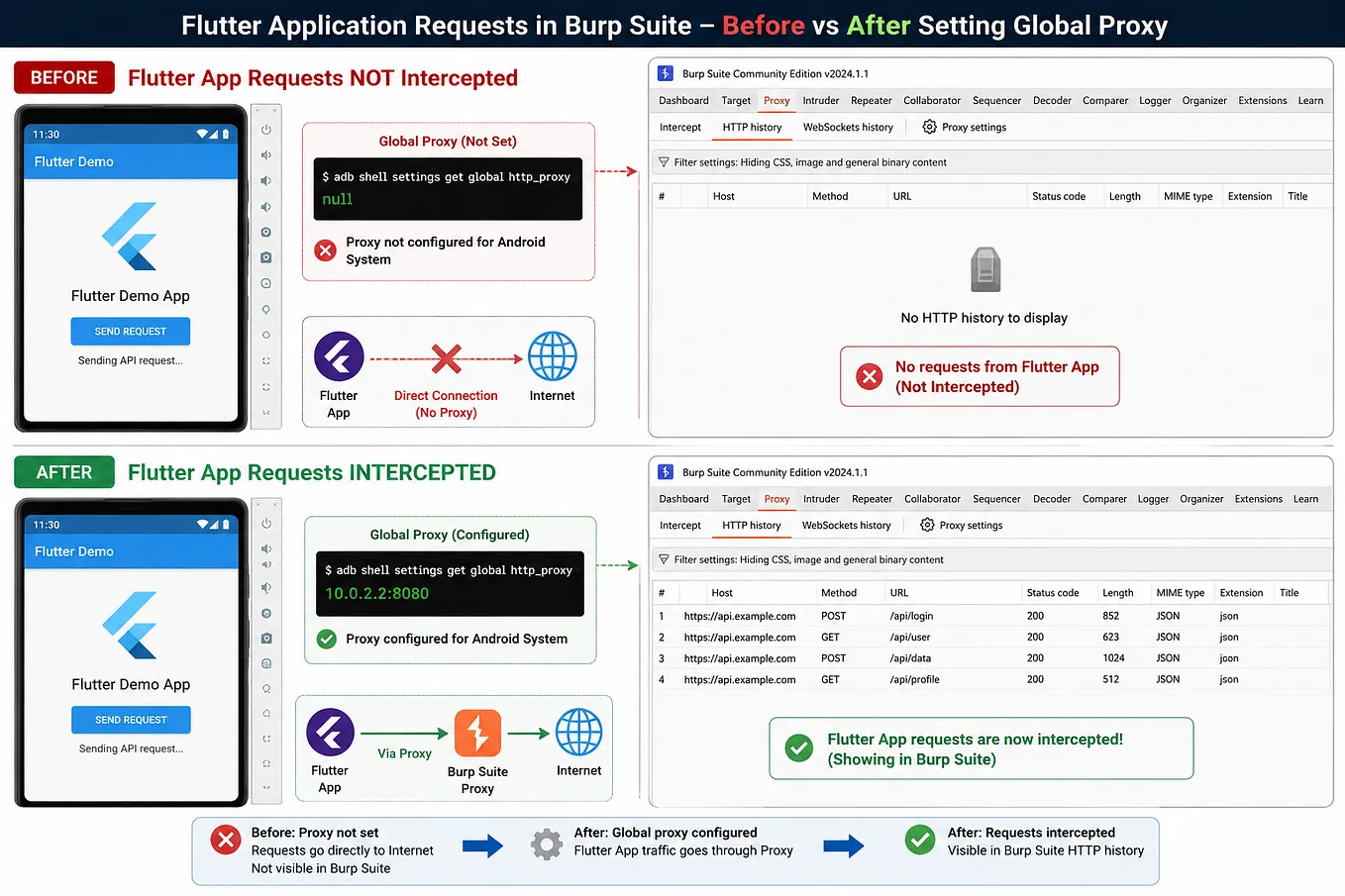
8. Burp Suite and HTTPS Traffic
Burp Suite can act as an HTTP(S) proxy between a test device and a server.
Simplified flow:
Android App → Burp Proxy → Application Server
Android App ← Burp Proxy ← Application Server
Basic authorized lab setup:
- Configure Burp to listen on a reachable interface and a chosen port.
- Configure the test device’s Wi-Fi proxy to point to the computer’s reachable IP and Burp port.
- Confirm the device can reach the proxy.
- Install and trust Burp’s CA certificate only in the test environment when needed.
- Open the test app and observe requests in Burp.
- Check whether requests contain tokens, identifiers, personal data, or insecure parameters.
For HTTPS interception, the device must trust the proxy’s certificate and the app must accept the proxy’s certificate chain. Apps may use certificate pinning or other custom network-security rules, so installing a CA certificate alone may not be enough.
Important: Never install a proxy CA certificate on a personal or production device unless you understand the trust implications. Remove lab certificates and proxy settings when finished.
SSL/TLS and certificate pinning
- TLS protects traffic in transit between endpoints.
- Certificate validation checks that the server certificate chains to a trusted authority and is valid for the host.
- Certificate pinning adds an app-specific expectation about the certificate or public key.
Pinning is not the same as encryption. An app can use TLS and still have other weaknesses, such as sensitive data in URLs, weak authorization, or insecure local storage. Test pinning only in an authorized environment.
9. Rooting and Safety
Rooting changes a device’s privilege model and can affect security, reliability, warranty, and data integrity. Do not root a daily-use device for a first lab. Prefer an emulator or a dedicated test device with backups.
A physical-device rooting procedure depends on the exact model, firmware, bootloader status, and Android version. Do not follow generic flashing instructions without confirming that they apply to your device.
Practical exercise
Use a training app and complete this checklist:
- [ ] Confirm the emulator or test device is authorized.
- [ ] Run
adb devices. - [ ] Identify the app package.
- [ ] Retrieve the APK path using
adb shell pm path. - [ ] Pull the APK if permitted.
- [ ] Open it in JADX.
- [ ] Decode it with APKTool.
- [ ] Review permissions and manifest entries.
- [ ] Observe logs with
adb logcat. - [ ] Configure Burp and inspect only your own test traffic.
- [ ] Record observations and validate any suspected issue.
Image — Session 03

Session 04 — — Android Components & Static Analysis
1. Activity Lifecycle
An Activity usually represents a screen or user interaction entry point. Android may create, pause, stop, or destroy activities as the app and system state changes.
Common lifecycle callbacks:
onCreate(): Initial setup of the activity.onStart(): The activity becomes visible.onResume(): The activity is in the foreground and can interact with the user.onPause(): The activity is losing foreground focus.onStop(): The activity is no longer visible.onDestroy(): The activity is being destroyed; this is not guaranteed to run in every process termination scenario.
Simplified flow:
onCreate → onStart → onResume
                    ↓
                 onPause
                    ↓
                 onStop
                    ↓
               onDestroy
The real lifecycle can take different paths. For example, a paused activity may resume without going through onCreate() again.
Security relevance
Review lifecycle-related code for:
- Sensitive data displayed or retained when the app moves to the background.
- Secrets written to logs.
- Insecure state restoration.
- Authentication state assumptions.
- Activities that process incoming intents or deep links.
Do not assume a lifecycle callback itself is a vulnerability. Understand the code and the data flow.
2. The Four Main Android Components
Activity
A UI screen or interaction entry point. Activities can receive intents and extras.
Service
A component for work that can continue without a visible UI. Modern Android versions place significant restrictions on background execution and foreground services.
Broadcast Receiver
A component that responds to broadcast intents. Security depends on which broadcasts it accepts, whether it is exported, and any permissions or validation applied.
Content Provider
A component that manages and exposes structured data through content URIs. Access control and URI handling are important.
These components are declared in AndroidManifest.xml, although some details can also be created or configured at runtime.
3. Exported Components and Permissions
A component marked as exported may be accessible to other applications, subject to Android rules and any required permissions. Exported does not automatically mean vulnerable. The risk depends on what the component does, the data it exposes, the permissions required, and the input validation performed.
Manifest example:
<activity
    android:name=".DeepLinkActivity"
    android:exported="true" />
This declaration means the activity can be launched by other apps under the applicable platform rules. Review whether it performs sensitive actions or trusts incoming data.
An activity that is not meant to be externally reachable should not be unnecessarily exported. Android’s requirements for explicitly setting android:exported depend on the app's target SDK and whether components have intent filters.
Permission categories (high-level)
- Normal permissions: Lower-risk access, generally granted automatically when declared.
- Dangerous permissions: Access to sensitive capabilities or user data; generally require runtime user approval.
- Signature permissions: Usually limited to apps signed with the same certificate as the permission owner.
- System/privileged permissions: Special permissions generally reserved for system-level apps or privileged deployment contexts.
The exact behavior depends on Android version, permission definition, target SDK, and installation context.
Practical manifest review
In JADX or decoded APK resources, inspect AndroidManifest.xml and list:
- Activities with
android:exported="true". - Services and receivers that are exported.
- Content providers and their access settings.
- Permissions declared by the app.
- Intent filters, deep links, and custom schemes.
- Backup, cleartext traffic, and network security configuration settings.
Then trace the relevant code to determine whether the component handles sensitive actions or data.
ADB and Activity Manager
ADB can interact with activities and other components in a test environment. The exact command depends on the package, activity name, Android version, and component export/permission rules.
For a component you own or are authorized to test, first identify its declared name in the manifest and consult the current Android platform documentation for the correct syntax. Do not assume that being able to invoke a component from ADB proves a real-world vulnerability: ADB has special debugging privileges and is not equivalent to an ordinary third-party app.
4. APK Structure
An APK is a ZIP-based package. Common entries include:
Entry Purpose
AndroidManifest.xml App metadata, components, permissions, and configuration
classes.dex Dalvik/DEX bytecode for application code
classes2.dex, etc. Additional DEX files in multidex applications
res/ Compiled Android resources
resources.arsc Compiled resource table
assets/ Application assets
lib/ Native libraries, often organized by CPU architecture
META-INF/ May contain signature-related metadata or package metadata, depending on build/signing format
The exact contents vary. Modern APK signing schemes may store signing information outside the traditional META-INF entries.
Manifest versus DEX
- The manifest describes the app’s structure and configuration.
- The DEX files contain compiled application bytecode.
- Resources and assets contain UI resources, strings, images, and other bundled files.
- Native libraries may contain compiled machine code that requires native analysis tools.
strings.xml often contains readable resource strings, but not every string used by the app must be stored there.
5. Extracting and Inspecting an APK
Step 1 — — Identify the package and APK path
adb shell pm list packages | grep -i training
adb shell pm path com.example.trainingapp
Step 2 — — Pull the APK
Use the actual path returned by pm path:
adb pull /path/returned/by/your/device/base.apk ./trainingapp.apkStep 3 — — Inspect with JADX
Open the APK in JADX’s graphical interface or use the command-line options provided by your installed version. Review the manifest, package structure, resources, and decompiled classes.
Step 4 — — Decode with APKTool
apktool d trainingapp.apk -o trainingapp_decodedReview:
trainingapp_decoded/
├── AndroidManifest.xml
├── res/
├── assets/        (if present)
├── lib/           (if present)
└── smali/         (or multiple smali directories)
This is an illustrative structure. Actual output can differ by APK and APKTool version.
Step 5 — — Search for security-relevant patterns
Search terms to start with:
android:exported
getSharedPreferences
SharedPreferences
MessageDigest.getInstance
Cipher.getInstance
SecretKeySpec
WebView
setJavaScriptEnabled
addJavascriptInterface
http://
https://
A match is only a lead. Confirm the code path, configuration, reachable inputs, and impact.
6. Static, Dynamic, and Network Analysis
Static analysis
Inspect an application without running it. Tools include JADX, APKTool, and MobSF.
Questions to ask:
- What components are declared?
- Are sensitive values hardcoded?
- Are permissions appropriate?
- Are deep links validated?
- Is cryptography used correctly?
- Are network security settings reasonable?
Dynamic analysis
Run the app and observe behavior. Tools may include an emulator, ADB, Logcat, Frida, and Objection.
Questions to ask:
- What happens with unexpected input?
- Does sensitive data appear in logs or local storage?
- Are client-side checks enforced only on the device?
- Does app behavior change with app state or device configuration?
Network traffic analysis
Use Burp Suite or another approved proxy to observe traffic from the test app.
Questions to ask:
- Is HTTPS used?
- Are tokens or personal data sent unnecessarily?
- Are identifiers accepted without server-side authorization?
- Does the server validate requests independently of the client?
- Are errors or redirects leaking information?
These techniques complement each other. Static analysis may suggest where to look; dynamic and network analysis can help validate behavior. No single tool provides complete coverage.
7. Rebuilding and Signing an APK
A common authorized lab workflow is:
- Decode an APK with APKTool.
- Make a controlled test modification.
- Rebuild the package.
- Sign the rebuilt APK with a test key.
- Install it on a test device.
- Verify the intended change and document any limitations.
Example rebuild:
apktool b trainingapp_decoded -o trainingapp_unsigned.apkSigning tools and syntax vary. Android SDK build-tools include apksigner and zipalign in many installations. Consult the installed version's help and official documentation before using exact commands.
Important considerations:
- A rebuilt APK is not automatically signed.
- A new signing key will not match the original app’s signing identity.
- Android generally will not update an installed app with a differently signed package under the same package identity.
- Modifying an APK can change its behavior and invalidate the original signature.
- Repackaging a third-party app does not by itself establish a valid bug bounty finding. Findings should demonstrate a security issue affecting the original product under the program’s rules.
Practical exercise
Using an intentionally vulnerable training APK:
- [ ] Read its manifest.
- [ ] Record package name and declared components.
- [ ] Identify exported components and their permissions.
- [ ] Search decompiled code for intent handling.
- [ ] Review crypto API calls and storage.
- [ ] Run the app and observe logs.
- [ ] Capture authorized test traffic.
- [ ] Write one observation with evidence, impact, and reproduction steps.
- [ ] Separate confirmed findings from hypotheses.
Image — Session 04

Mini Practical Lab
This lab combines concepts from all four sessions. Use an intentionally vulnerable training APK or an app you own and have permission to test.
Phase A — — Environment
adb version
adb devices
Confirm that your device is authorized and visible.
Phase B — — Find the package and APK
adb shell pm list packages | grep -i diva
adb shell pm path <package.name>
Replace <package.name> with the actual package identifier. Pull the path returned by your device.
Phase C — — Static inspection
- Open the APK in JADX.
- Review
AndroidManifest.xml. - Record permissions and exported components.
- Search for
Cipher.getInstance,MessageDigest.getInstance,SharedPreferences,WebView, and URLs. - Treat every observation as a hypothesis until you understand its context.
Phase D — — Runtime and logs
adb logcatLaunch the training app and observe relevant events. Avoid collecting unrelated personal data.
Phase E — — Network analysis
- Configure Burp for your isolated lab.
- Configure the test device proxy.
- Generate test traffic.
- Review request methods, headers, cookies, tokens, parameters, and responses.
- Do not assume that a request being visible or editable is itself a vulnerability.
Phase F — — Write a finding
Use this structure:
Title:
Affected app/version:
Environment:
Summary:
Preconditions:
Steps to reproduce:
Observed result:
Expected result:
Security impact:
Evidence:
Limitations:
Suggested remediation:
A strong report explains a reproducible security impact. A suspicious code pattern without a demonstrated impact should be documented as an observation or hypothesis, not overstated as a confirmed vulnerability.
Quick Checklist
Java
- [ ] Explain source code, compiler, bytecode, and runtime.
- [ ] Distinguish JDK, JRE, and JVM.
- [ ] Read variables, conditions, loops, methods, and classes.
- [ ] Recognize access modifiers and inheritance.
- [ ] Follow a method call in decompiled code.
Cryptography
- [ ] Explain the difference between encoding, hashing, and encryption.
- [ ] Recognize MD5, SHA-1, and SHA-256 digest lengths.
- [ ] Know why plain fast hashes are unsuitable for password storage.
- [ ] Explain AES key sizes and why DES is obsolete.
- [ ] Compare ECB, CBC, and GCM.
- [ ] Check key, IV/nonce, salt, and authentication handling.
Tools
- [ ] Use
adb devices,adb shell,pm list packages, andpm path. - [ ] Read logs with Logcat.
- [ ] Explain the roles of scrcpy, JADX, APKTool, and MobSF.
- [ ] Explain what Frida and Objection are used for.
- [ ] Configure Burp only in an authorized test environment.
- [ ] Understand that SSL pinning is different from TLS itself.
Android Components and APKs
- [ ] Explain the Activity lifecycle.
- [ ] Name the four main Android components.
- [ ] Review exported components and their permissions.
- [ ] Identify manifest, DEX, resources, assets, and native libraries.
- [ ] Distinguish static, dynamic, and network analysis.
- [ ] Understand APK rebuild and signing limitations.
- [ ] Validate findings and document evidence.
Image Prompt Library
Use these prompts to generate one separate summary image per session. For consistent visuals, keep the same aspect ratio (16:9), dark navy background, cyan highlights, typography, and icon style.
Session 01 — — Java Fundamentals

Session 02 — — Cryptography & Android Fundamentals

Session 03 — — Mobile Pentesting Tools & Setup

Session 04 — — Android Components & Static Analysis

Final Study Advice
The most useful workflow is to connect the concepts rather than memorize tool names:
- Use Java knowledge to understand decompiled code.
- Use cryptography fundamentals to identify suspicious crypto patterns.
- Use ADB and the other tools to inspect an authorized test app.
- Read the manifest and understand Android components.
- Validate interesting code paths with runtime or network observations.
- Write evidence-based reports and clearly distinguish confirmed issues from hypotheses.