Your NAS disks never spin down? A free fix for OpenMediaVault and WD Red drives
A small, free plugin that puts idle hard disks to sleep when they ignore their own spindown timer, without ever waking a sleeping disk.

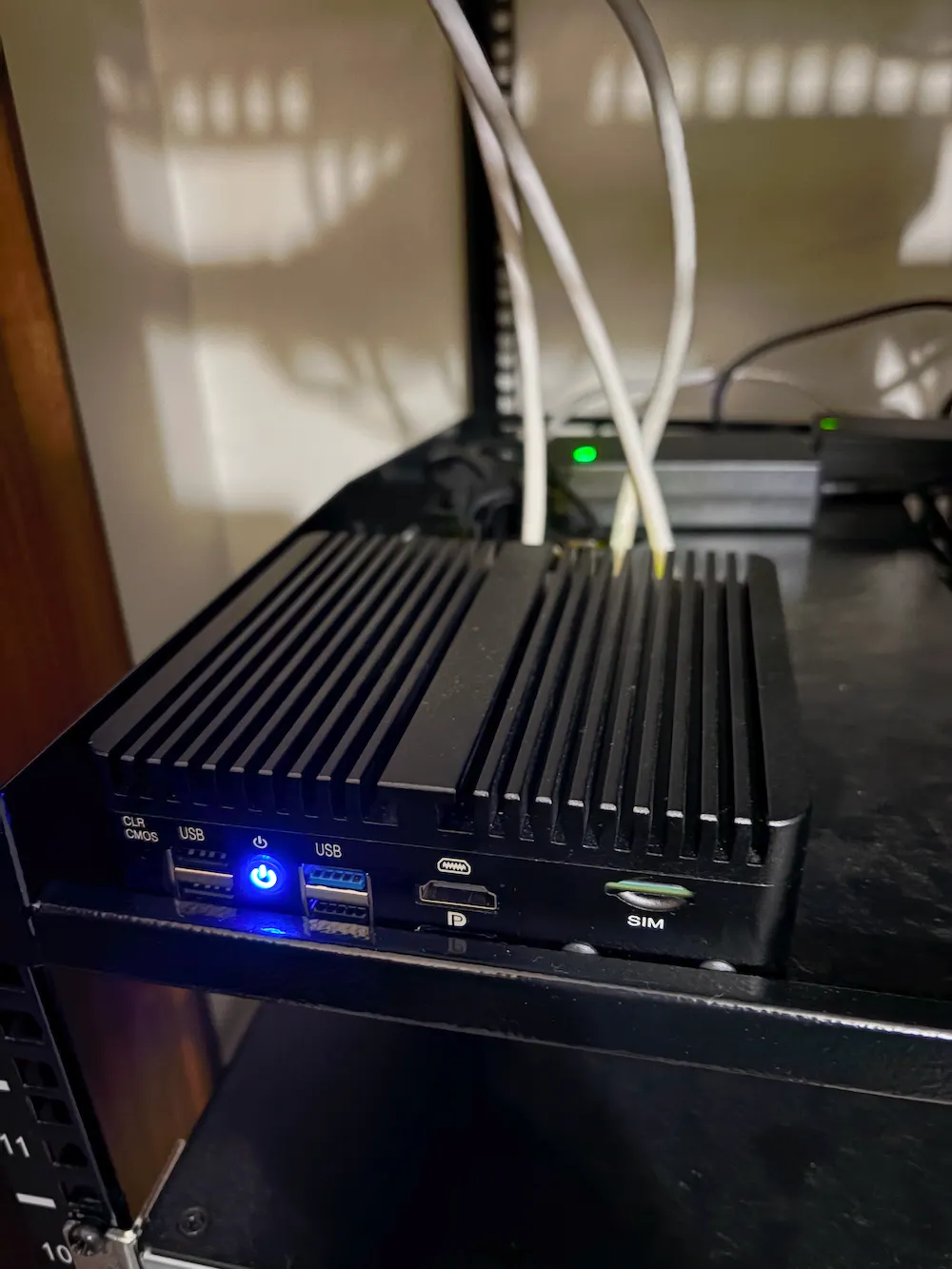
I run OpenMediaVault on a QNAP TS-253D with two 12 TB WD Red drives in a ZFS mirror. They hold backups, so most of the day nothing touches them. For a long time they went to sleep after ten minutes, as set in OpenMediaVault. Then one day they stopped. They spun all day and all night, using power and wearing their motors for nothing.
If you have searched for “WD Red not spinning down” or “OpenMediaVault spindown not working”, you know this is not rare. OpenMediaVault issue #1892 has years of reports from people with the same problem.
Why the disks stay awake
When you set a Spindown time in OpenMediaVault (Storage › Disks), OMV hands that timer to the disk itself. From then on it is the disk’s job to notice it has been idle and go to sleep.
Many disks, WD Reds in particular, simply don’t. I traced every command sent to my disks: after a cold boot they went 18 minutes without a single read, write or health check, with a 10 minute timer, and still kept spinning. Yet the moment they were told to sleep, they slept straight away.
So the disks can sleep. They just won’t do it on their own.
The fix: openmediavault-spindown
So I wrote a plugin that does the waiting for them. It’s called openmediavault-spindown, it’s free and open source, and it is set up entirely with clicks:
- Point and click. Open Storage › Spin down, pick a disk, click Edit and choose how long it may sit idle. No commands, no settings files.
- Never wakes a sleeping disk. It only watches the kernel’s activity counters, which don’t touch the disk at all.
- Puts the disk back to sleep after every wake-up, whether a file was read or written.
- Shows what is going on: for each disk, whether it is asleep or in use, how soon it will sleep, and when it last slept.

Disks that do sleep by themselves are not affected: they are already asleep when the plugin checks, so it does nothing.
How it works
Every 30 seconds a small background service reads the kernel’s count of completed reads and writes for each disk. When that count hasn’t changed for the disk’s spindown time, it sends the disk one sleep command. That command first checks the disk’s power state and does nothing if the disk is already asleep, so it can never spin a sleeping disk up.
Get Nader Eloshaiker’s stories in your inbox
Join Medium for free to get updates from this writer.
The time you choose is stored as the disk’s normal Spindown time, the same setting OpenMediaVault already has, so both pages always agree. Health checks such as S.M.A.R.T. don’t count as use, so they don’t keep a disk awake either.
Getting started
- Download the one file,
openmediavault-spindown_<version>_all.deb, from the latest release. - In OpenMediaVault, open System › Plugins, click Upload, choose the file, then select the plugin and click Install.
- Open Storage › Spin down, select a disk, click Edit and choose “Put to sleep after”, for example 10 minutes.
- Click Apply in the yellow bar at the top.

The Status column then counts down and shows “Asleep” once the disk is sleeping.
Still awake? Something is using the disk
The plugin can only help when nothing is reading or writing the disk. If the Status column keeps saying “In use”, look for Docker containers or apps with data on that disk, media servers scanning their libraries, computers browsing your shares, or ZFS with atime turned on. Moving busy app data to an SSD and keeping the hard disks for bulk storage makes the biggest difference.
One more thing I found along the way: clicking Apply in OpenMediaVault, or installing any plugin, wakes every hard disk for a moment, because OMV’s configuration tool scans all disks for LVM volumes each time it runs. That is normal, and the disks go back to sleep after their time.
Common questions
Why won’t my hard disks spin down in OpenMediaVault?
Either the disk ignores the timer OMV gives it, or something keeps using it. The plugin’s Status column tells the two apart: a disk that counts down and then sleeps was ignoring its timer; a disk that keeps showing “In use” is busy.
Why do WD Red drives never go to sleep?
Their firmware often ignores the standby timer the system sets, yet they go to sleep at once when told to. That is exactly the gap this plugin fills.
Will it wake my disks to check on them?
No. It never reads from the disk to see how it is doing. It only reads counters the kernel already keeps.
Does it work with ZFS, RAID or mergerfs?
Yes. It works on each physical disk, whatever is on it. Mine is a ZFS mirror.
Is it bad for a disk to spin down?
Each start wears the motor a little, and disks are rated for a set number of start/stop cycles. A few sleeps a day is fine. If a disk keeps waking every few minutes, give it a longer time, or choose Never.
Which versions of OpenMediaVault does it support?
OpenMediaVault 8.
Links
- Project website, with the full guide: openmediavault-spindown
- Source code and issues: GitHub
- Download: latest release
- Running OMV on a QNAP? My other plugin brings back quiet fans, LEDs and buttons: Run OpenMediaVault on your QNAP NAS
If it helps your disks finally get some sleep, I’d love to hear which drives you have. And if it doesn’t, open an issue on GitHub and I’ll take a look.