Every Mac Keyboard Shortcut for Managing Windows (2026 Cheat Sheet)
Switch, tile, hide and find any window without touching the mouse. All the built in ones in one place, checked on the newest macOS, plus the ones worth adding.

Reaching for the trackpad, hunting for a window and clicking it takes a second or two. A shortcut takes a fraction of that. You switch windows hundreds of times a day, so it adds up fast.
Here’s every window shortcut macOS has, grouped by what you’re trying to do. Bookmark it, then learn one group a week.
A quick key guide first:
- ⌘ Command
- ⌥ Option
- ⌃ Control
- ⇧ Shift
- fn the fn or globe key, bottom left on Mac keyboards
(Disclosure: the last section covers ClutterFreeMac, an app I make. Everything before it is built into macOS.)
1. Switching between apps and windows
- Switch to another app: ⌘ Tab
- Switch backwards: ⌘ ⇧ Tab
- Switch windows of the same app: ⌘ ` (the key above Tab)
- See every window (Mission Control): ⌃ ↑
- See all windows of this app (App Exposé): ⌃ ↓
- Show the desktop: fn F11
- Open Spotlight to launch anything: ⌘ Space
Hidden trick: while holding ⌘ in the app switcher, press Q to quit the highlighted app or H to hide it.
Why ⌘ Tab won’t show your second browser window: it switches apps, not windows. ⌘ ` is the one you want. If it does nothing, a non English keyboard layout is usually the reason, and here’s the fix.
2. Tiling and resizing (macOS Sequoia and later)
Apple added real tiling in macOS 15. These keys work on every version since, including the newest one.
- Left, right, top or bottom half: fn ⌃ and an arrow
- Fill the screen (not full screen): fn ⌃ F
- Centre the window: fn ⌃ C
- Back to the previous size: fn ⌃ R
- Two front windows side by side or stacked: fn ⌃ ⇧ and an arrow
- One window in a half, others in quarters: fn ⌃ ⌥ ⇧ and an arrow
- Full screen mode: fn F
You can also drag a window to an edge or corner to tile it. Hold ⌥ while dragging and it tiles straight away.
Get prabhanjan’s stories in your inbox
Join Medium for free to get updates from this writer.
Where it stops: halves and quarters only. There are no thirds, and nothing happens to a window you open later. It lands on top like always. The full list of tiling options is in how to tile windows on a Mac.
3. Hiding, minimising and closing
- Close the window: ⌘ W
- Close every window of the app: ⌘ ⌥ W
- Minimise the window: ⌘ M
- Minimise every window of the app: ⌘ ⌥ M
- Hide the app: ⌘ H
- Hide every other app: ⌘ ⌥ H
- Quit the app: ⌘ Q
- Force quit a frozen app: ⌘ ⌥ Esc
Hide beats minimise. Minimised windows end up in the right side of the Dock and get forgotten. A hidden app comes straight back with ⌘ Tab. Here’s minimise vs hide if you’re not sure which to use.
4. Desktops (Spaces)
- Next or previous desktop: ⌃ → or ⌃ ←
- Go to desktop 1, 2, 3: ⌃ 1, ⌃ 2, ⌃ 3 (turn on first in Keyboard Shortcuts > Mission Control)
- Add a desktop: ⌃ ↑, then click + at the top right
5. Trackpad gestures that do the same
- Three fingers up: Mission Control
- Three fingers down: App Exposé
- Three fingers left or right: Next or previous desktop
- Thumb and three fingers spread: Show the desktop
Some Macs use four fingers by default. Check System Settings > Trackpad > More Gestures.
6. Make your own
Any command in any app’s menu can get its own shortcut. Go to System Settings > Keyboard > Keyboard Shortcuts > App Shortcuts, click +, and type the exact menu name, for example “Merge All Windows”. Some shortcuts clash. If one stops working, here’s how to find the conflict.
7. The shortcuts macOS doesn’t have
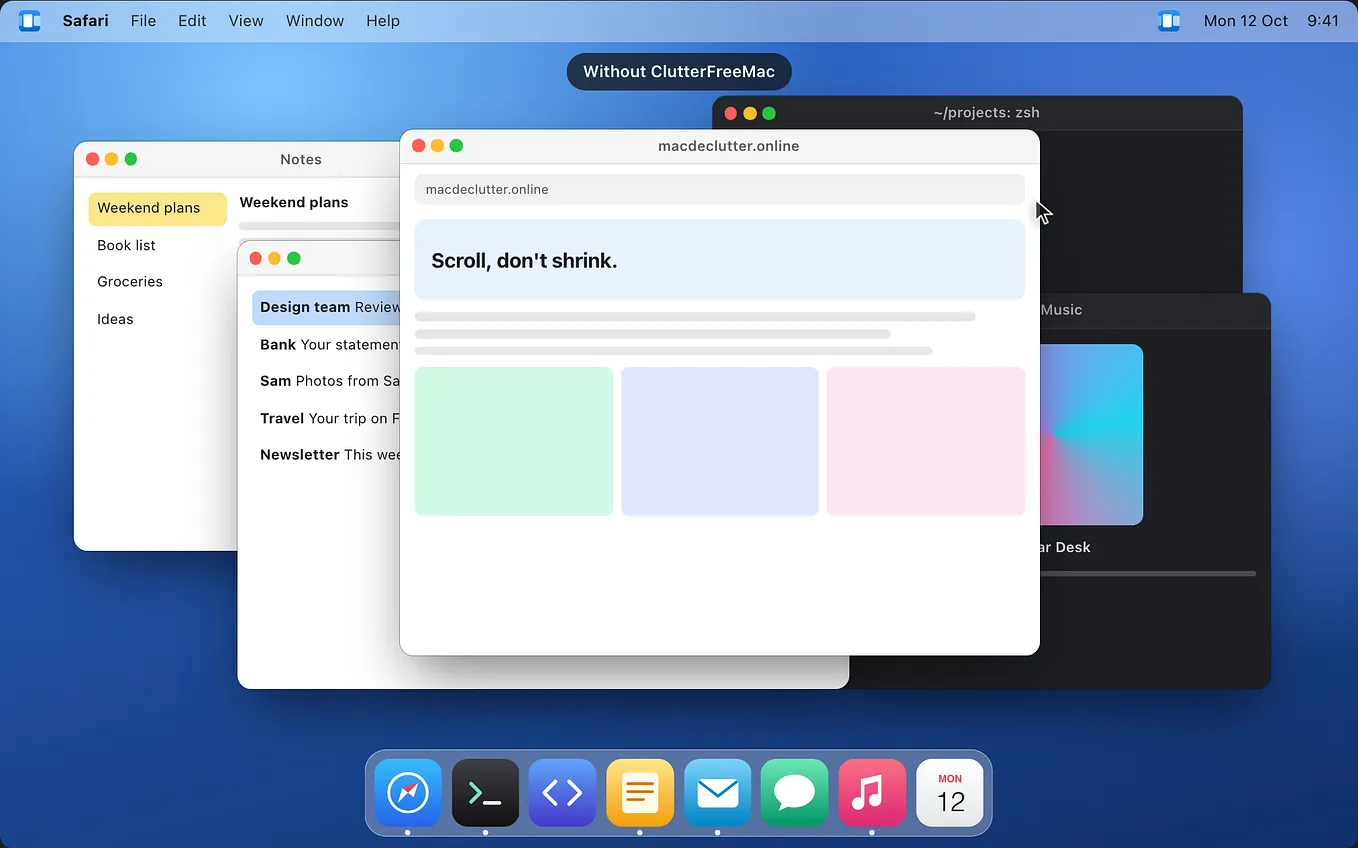
Every shortcut above works on one window at a time. You find a window, then you size it, then a new one opens on top and you start again.

That’s the gap ClutterFreeMac fills. It puts every window side by side on one long strip that runs past the edges of your screen. New windows open next to the one you are using, so nothing is ever hidden. The shortcuts then move along all your windows at once:

Move to the next window: ⌃ ⌥ ← → (or H J K L)
- First or last window: ⌃ ⌥ ⌘ ← →
- Jump to window 1 to 9: ⌃ ⌥ 1 to 9
- Move the window along the strip: ⌃ ⌥ ⇧ and an arrow
- Cycle a third, half, two thirds: ⌃ ⌥ R
- Full width: ⌃ ⌥ F
- Centre the column: ⌃ ⌥ C
- Wider or narrower: ⌃ ⌥ = or −
- Stack into the left or right column: ⌃ ⌥ ] or [
- Turn a column into tabs: ⌃ ⌥ ⇧ T
- Float or tile a window: ⌃ ⌥ T
- Send to the next display: ⌃ ⌥ N
- Pause: ⌃ ⌥ P

They all sit under ⌃ ⌥, so they never clash with the system ones above, and every shortcut can be rebound in Settings. A three finger swipe moves the strip too, following your fingers like swiping between desktops.
It runs on Apple silicon and Intel Macs from macOS Ventura, needs only the Accessibility permission, and has no config file. If you live on the keyboard, the power user setup shows how it fits with everything else.
The 10 to learn first
If this is a lot, start with these and add more later:
- ⌘ Tab
- ⌘ `
- ⌃ ↑
- ⌘ H
- ⌘ ⌥ H
- fn ⌃ ← and →
- fn ⌃ F
- ⌘ W vs ⌘ Q
- ⌃ ← and →
- ⌘ Space
You can try the strip shortcuts in your browser before installing anything: macdeclutter.online.
I’m Prab. I make small Mac apps that each fix one annoying thing: ClutterFreeMac for windows, Free Mac for storage, and Simply PDF for PDFs.