Running a DynamoDB GUI Without a Mouse: Testing Keyboard and Screen-Reader Accessibility
Introduction
A database GUI can make working with DynamoDB easier, but can you still complete everyday operations without using a mouse?
In this walkthrough, I tested Tables by ServerlessCreed, a desktop DynamoDB GUI, using keyboard navigation and Windows Narrator.
The goal was to open a table, execute a Scan, inspect and edit an item, and export results without relying on the mouse. I also tested platform shortcuts, focus behavior, screen-reader announcements, and recovery from a network failure.
Prerequisites
To reproduce this workflow, you need:
- Tables by ServerlessCreed installed.
- Access to an approved, non-production DynamoDB environment.
- A configured AWS connection with suitable read/write permissions.
- A keyboard and Windows Narrator or another screen reader.
- A disposable test item for editing operations.
For this test, I used:

1. Testing platform keyboard shortcuts
I started by opening the Keyboard section under Preferences & Application Lifecycle.
Tables documented five Windows shortcuts:

All five worked during the initial testing.

I then opened the PartiQL editor and entered:
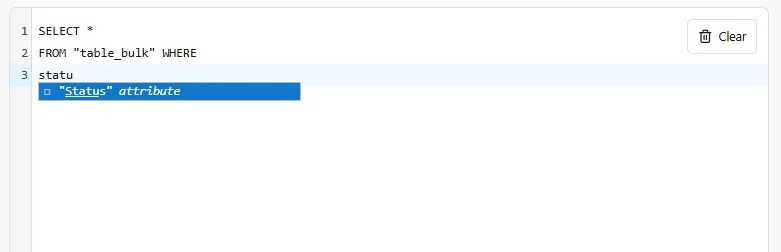
SELECT * FROM "Composite_Scan_500"With the editor focused, pressing Ctrl+K opened the command palette. Pressing Esc closed it, while Ctrl+B toggled the sidebar.
The SQL statement remained unchanged throughout these interactions.


This confirmed that the tested global shortcuts did not interfere with editor contents. However, a deliberate reassignment conflict was not tested because no shortcut-remapping option was available in the inspected settings.
2. Navigating with Windows Narrator
Next, I enabled Windows Narrator using Win + Ctrl + Enter and navigated through Tables using Tab, Shift+Tab, and Enter.
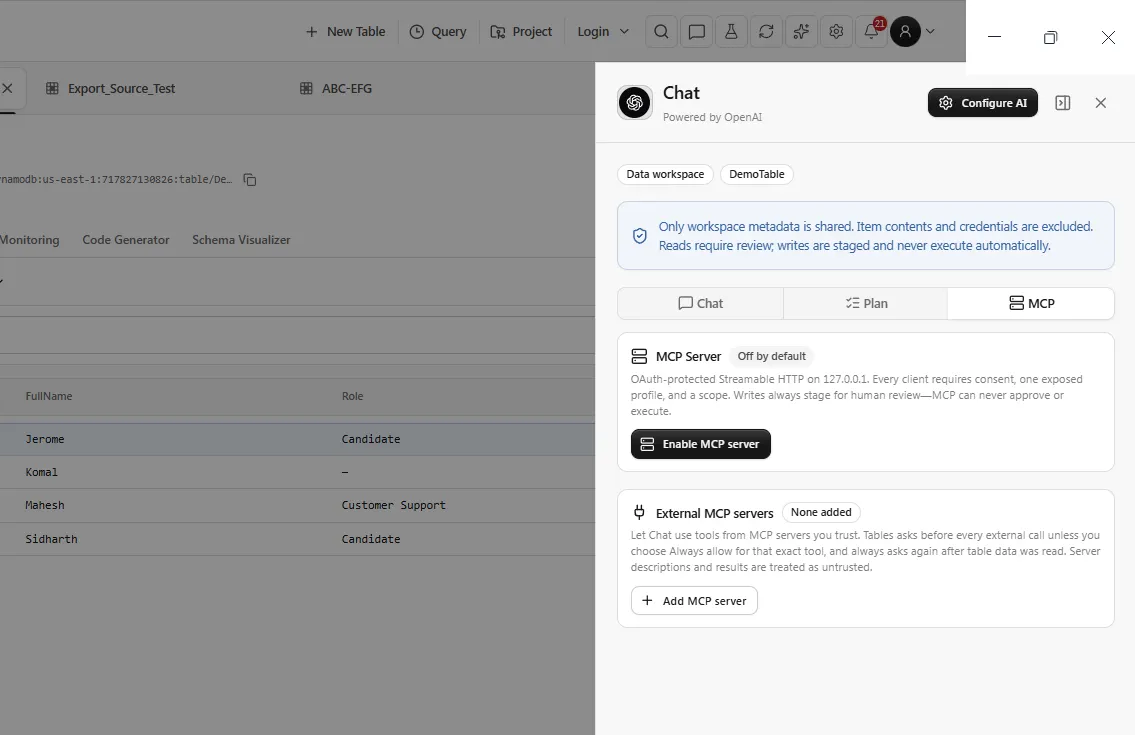
The Settings menu was reachable without a mouse.
Narrator identified it as an Open Settings Menu button and announced its menu items, including:
Preferences & Lifecycle, menu item 1 of 3.

Pressing Esc closed the menu successfully. However, focus restoration was occasionally unclear, with the visible focus indicator appearing around the Settings tooltip or an empty rectangular area.
I then navigated to DemoTable and opened it using Enter.
Narrator announced the table name, active status, and item count.
This demonstrated that the main table-selection workflow was accessible through keyboard navigation.
3. Running a Scan, editing an item, and exporting data
With DemoTable open, I navigated to the Run button.
Narrator correctly announced “Run button,” and pressing Enter executed a read-only Scan.
Tables returned the four existing records.

Although the Scan succeeded, Narrator did not announce a distinct completion message or returned-item count.
Editing a disposable item
Next, I opened the Create Item dialog using the keyboard.
Get Sidharth Bangera’s stories in your inbox
Join Medium for free to get updates from this writer.
I created a disposable item with userID = 106 and Status = Active.
After verifying its creation, I opened the item editor and changed its primary key from 106 to 150.
Tables displayed a warning explaining that changing a primary key recreates the item.
After saving, the updated record appeared under userID = 150.


During item inspection, I also encountered two limitations: I could not deselect a selected item using the attempted Enter or Space interactions, and Esc did not close the persistent Item Inspector.
Exporting the results
Finally, I navigated to the Export option using the keyboard, which opened the Data Transfer Center in Tables.
I selected JSON export for the loaded results, navigated to Start export, and completed the Windows Save dialog without using the mouse.

The exported file was independently opened in VS Code and contained six records.
Tables indicated that the export used already loaded results without requiring an additional DynamoDB read.
4. Empty states, errors, and recovery
I also tested how Tables communicated an empty table and a network failure.
Opening ABC-EFG, an empty table, displayed a message explaining that no items were present.
Narrator announced the table name and zero-item count, although the central empty-state description was not announced during the observed interaction.
Network failure
I deliberately disconnected the internet and attempted a read-only Scan.
Tables displayed a DNS lookup failure along with a network-error notification.

Unlike the successful Scan completion, the network error was announced by Narrator.
After reconnecting, the error disappeared and the table returned to its normal empty state. No separate recovery announcement was observed.
The failure was caused by the deliberately disconnected network, not an AWS permissions issue.
5. Accessibility Findings and Observations
The testing demonstrated that Tables supports several essential keyboard-driven operations, including table navigation, query execution, item editing, and data export. Windows Narrator also identified key interface controls and announced network errors.

Overall, the core workflow was successfully completed without relying on a mouse. The results also highlighted areas where keyboard interaction and screen-reader feedback could be more consistent.
In particular, predictable selection behavior, clear focus indication, and meaningful announcements after an operation can help users navigate the application more confidently.
These observations reflect the behavior encountered during testing and identify opportunities for further accessibility improvements.
Practical takeaways
This testing demonstrated that a core DynamoDB workflow in Tables can be completed through keyboard navigation.
I could open a table, execute a Scan, create and edit a disposable record, and export the results without relying on a mouse.
The platform shortcuts also worked, including opening the command palette while preserving the contents of the PartiQL editor.
However, accessibility involves more than activating controls. Predictable focus behavior, item deselection, dialog dismissal, and meaningful screen-reader announcements are equally important.
The network failure test illustrated this distinction particularly well: Tables displayed the error, Narrator announced it, and the interface returned to a usable state after connectivity was restored.
For me, the main takeaway is that a database GUI should make every step understandable, not just executable, without a mouse.
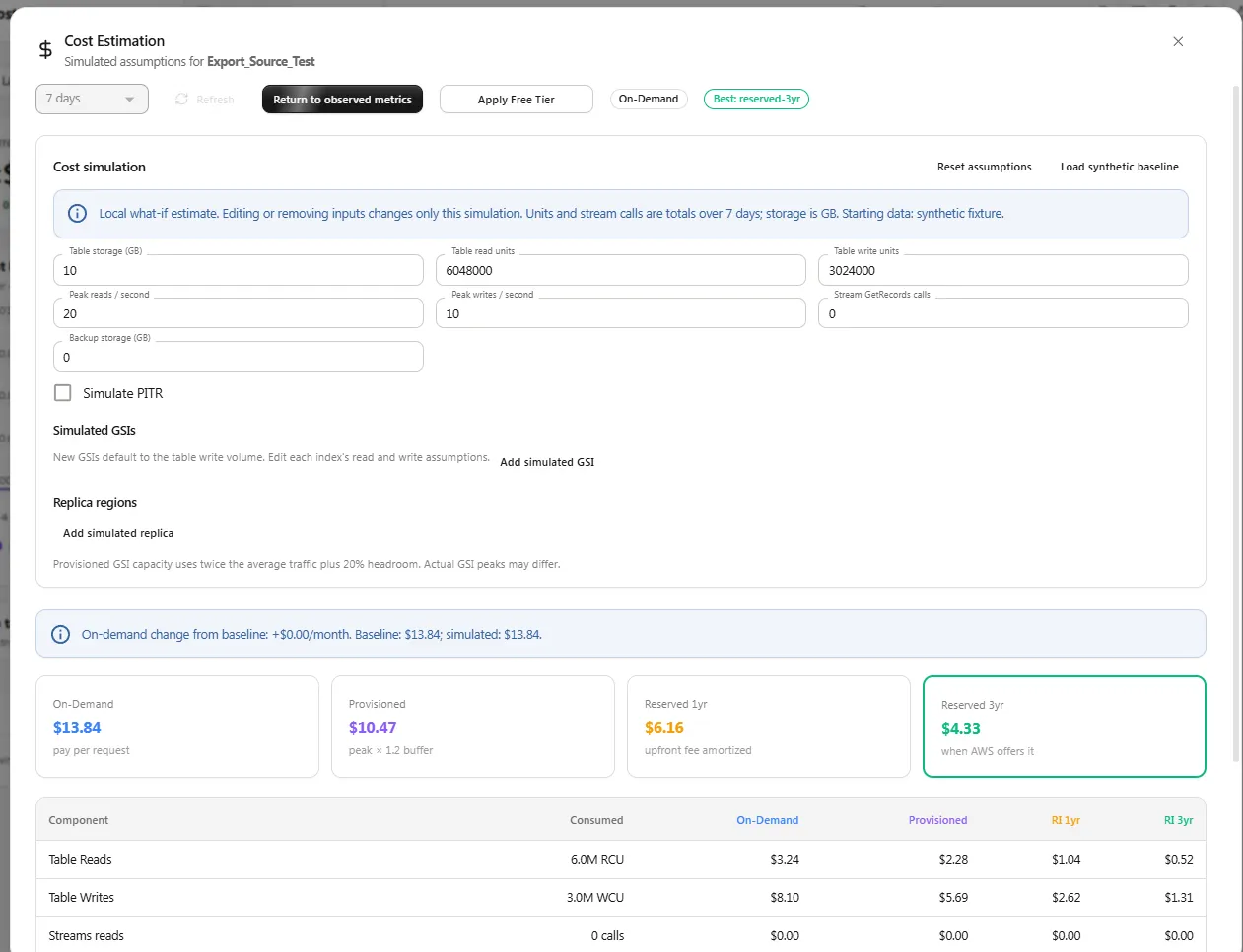
Costs and limits: No additional Tables-specific costs were measured during this test. The small number of DynamoDB reads and writes remained subject to standard AWS pricing, while the export of already loaded results required no additional DynamoDB reads. Testing was limited to Windows 11 and Tables v3.3.42.
For further details, see DynamoDB pricing and Scanning tables in DynamoDB.
Application: Tables by ServerlessCreed
Download: Official Tables downloads