MakeCode Arcade: How Do I ______??


If you’re new to Microsoft MakeCode Arcade, you may not know all of the ins and outs yet, especially if you came over from Scratch or Code.org.
No worries, this post will help you figure out how to do some of the most common things…but be sure to click on the underlined links, since they’ll take you to previous blog posts that provide a lot more detail.
How Do I Get Started?
When you arrive at the https://arcade.makecode.com page, you may not be quite sure what you’re looking at. Here’s an overview…

The top shows a banner that highlights the most important things happening with the product. This could be special tutorials, videos, or even webinars.
The next row is where your projects will live. The big orange button starts a new project, and the white tiles to the right are projects that you’ve already started (you might not have any of those yet.)
All of the rows beneath that will point you to other content. We have “skillmaps,” which are groupings of tutorials that make larger games, and we have individual “tutorials” which are single activities that make games that are more simple.
If you keep scrolling, you’ll find a bunch of content that you won’t need until you’ve spent a little more time playing with MakeCode Arcade.
How Do I Start a New Project?
The details here all depend on what you’re trying to do! As mentioned above, clicking the orange button will start a new project.

Give it a name, then you can start coding.


To the left, you’ll see the “game window.” This is where the results of your code will show. The section of categories in the middle is your “toolbox.” That’s where all of the coding blocks live. You can pull them out or put them back. To the right is the “workspace.” That’s where you’ll snap your blocks into place when you want to add them into your program.
You can learn more about starting a project in MakeCode Arcade by watching this video:
How Do I Create My Character?
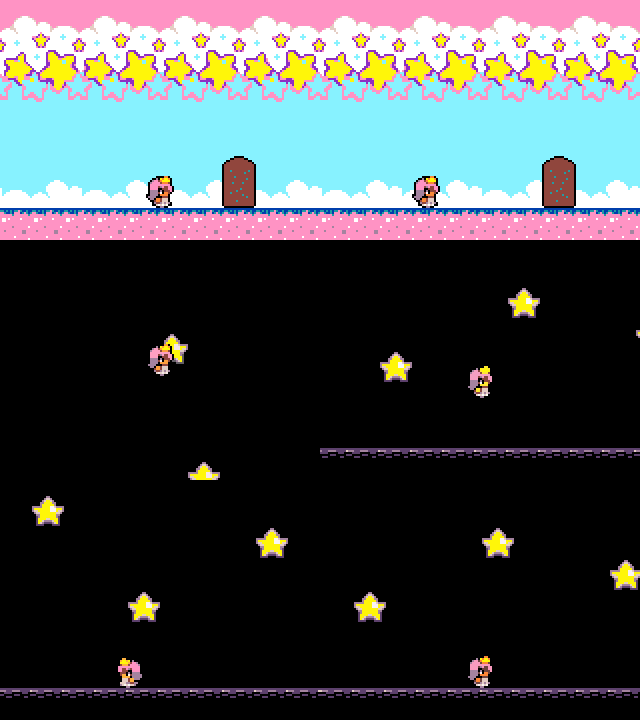
The characters in your games are called “sprites”. Visit the Sprites category for all of the blocks you’ll need to get your character on the screen and moving! This post will tell you all about creating sprites in your game.
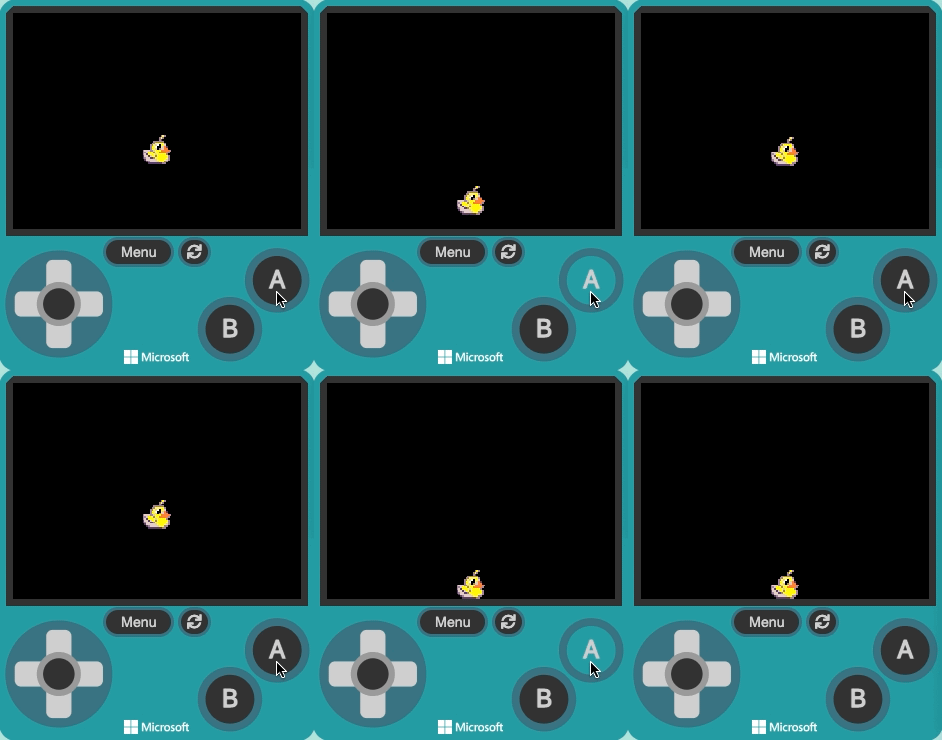
Once you have your sprites, you’ll want to get them moving, and maybe even animate them!
How Do I Build the Rest of My Game?
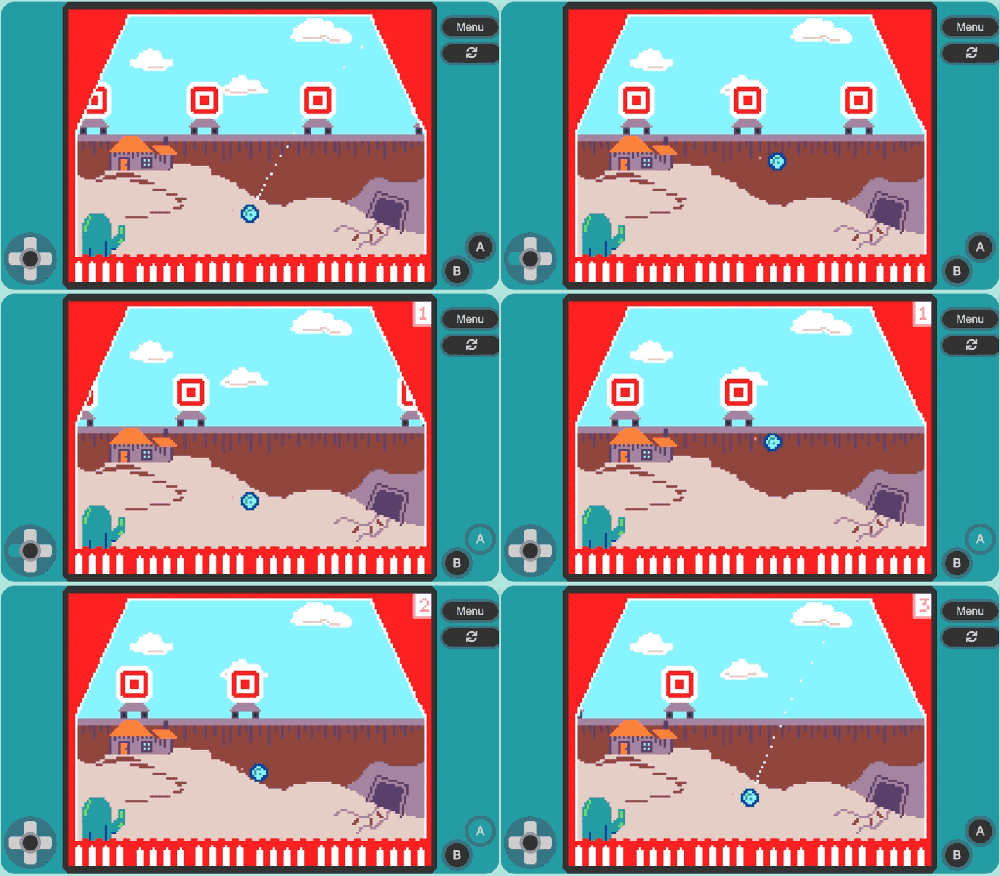
This is tough to answer, since I don’t know what kind of game you’re building! That said, I’ve written posts that address some of the most common tasks:
How Do I Save My Game?
There are a BUNCH of ways to save your game in MakeCode Arcade!
Get Kiki Prottsman’s stories in your inbox
Join Medium for free to get updates from this writer.
This article covers them all, but basically, you can use:
- The save button
- The snapshot button
- The download button
- or GitHub
How Do I Share My Game?
One of the biggest mistakes we see when people try to share their games on the forum is that they copy the URL (which will always be arcade.makecode.com/#editor when you’re editing your project) instead of hitting the “share” button.
This article describes the proper way to share your games.
How Do I Play My Game with Friends?
Interested in multiplayer? You can create games that allow you to play against one other person on the same keyboard…

…or you can make games that allow up to FOUR PEOPLE to play together online. This article will tell you more about that.

And this page will explain all about online multiplayer.
How Do I Play My Game on Xbox?
This is a fun one! All you need to do is download the free app!
How Do I Mod a Game Someone Shared with Me?
Once you paste the link they sent you in the address bar of your browser, the game will open in the window. Just click the “Edit Code” button above the game window to begin modding the game!

How Do I Load a Game that I Saved Earlier?
If you’re loading from a saved file, you can either navigate to the place where you saved that file and drag it into a window that already has arcade.makecode.com preloaded, or you can visit arcade.makecode.com and click the “Import” button to find the file on your computer.

And that’s it! That’s everything you should need to know to get started using Microsoft MakeCode Arcade!
Did I leave anything out? Let me know by leaving a comment below.