# Flow block in Connect Customer: Check contact attributes
This topic defines the flow block for branching based on a comparison to the value of a contact attribute.
## Description
+ Branches based on a comparison to the value of a contact attribute.
+ Supported comparisons include: **Equals**, **Is Greater Than**, **Is Less Than**, **Starts With**, **Contains**, **Exists**, **Key Exists**.
+ **And (all match)** and **Or (any matches)** operators for grouping compound conditions in one branch.
**Note**
The **Exists** and **Key Exists** operators, and combining multiple conditions in a single branch with **And** or **Or**, are only available in [Amazon Connect Customer](https://docs.aws.amazon.com/connect/latest/adminguide/enable-nextgeneration-amazonconnect.html) instances.
## Supported channels
The following table lists how this block routes a contact who is using the specified channel.
| Channel | Supported? |
| --- | --- |
| Voice | Yes |
| Chat | Yes |
| Task | Yes |
| Email | Yes |
## Flow types
You can use this block in the following [flow types](create-contact-flow.md#contact-flow-types):
+ All flows
## Properties
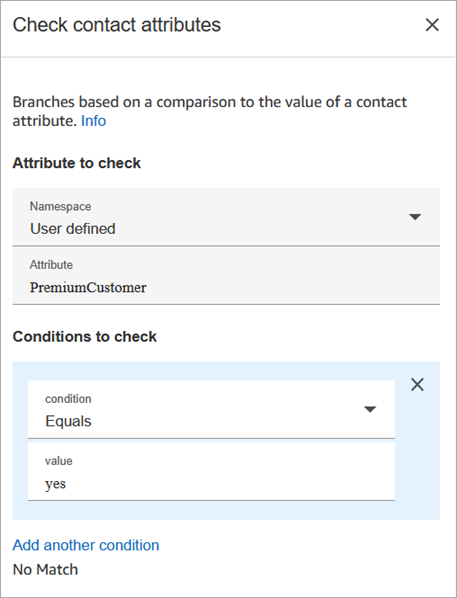
The following image shows the **Properties** page of the **Check contact attributes** block. In this example, the block is configured to check whether the contact is a **PremiumCustomer**, which is a [user-defined attribute](connect-attrib-list.md#user-defined-attributes).
### Conditions to check can be dynamic
You can check conditions like the following:
+ $.Attributes.verificationCode
To check for a NULL value, use the **Exists** operator (available only in [Amazon Connect Customer](https://docs.aws.amazon.com/connect/latest/adminguide/enable-nextgeneration-amazonconnect.html) instances) or use a Lambda.
### Amazon Lex attributes
You can set attributes that are **Type** = **Lex** as follows:
+ **Alternative Intents**: Usually you configure flows to branch on the winning Lex intent. However, in some situations, you might want to branch on an alternate intent. That is, what the customer might have meant.
For example, in the following image of the **Check contact attributes** properties page, it is configured so the alternative intent indicates that if Amazon Lex is more than 70% confident the customer meant *fraud*, the flow should branch accordingly.

1. **Intent name** is the name of an alternate intent in Lex. It's case sensitive and must match what's in Lex exactly.
1. **Intent Attribute** is what Connect Customer is going to check. In this example, it's going to check the **Intent Confidence Score**.
1. **Conditions to check**: If Lex is 70% certain the customer meant the alternate intent instead of the winning intent, branch.
+ **Intent Confidence Score**: How confident is the bot that it understands the customer's intent. For example, if the customer says "I want to update an appointment," *update* can mean *reschedule* or *cancel*. Amazon Lex provides the confidence score on a scale of 0 to 1:
+ 0 = not at all confident
+ .5 = 50% confident
+ 1 = 100% confident
+ **Intent Name**: The user intent returned by Amazon Lex.
+ **Sentiment Label**: What is the winning sentiment, the one with the highest score. You can branch on POSITIVE, NEGATIVE, MIXED, or NEUTRAL.
+ **Sentiment Score**: Amazon Lex integrates with Amazon Comprehend to determine the sentiment expressed in an utterance:
+ Positive
+ Negative
+ Mixed: The utterance expresses both positive and negative sentiments.
+ Neutral: The utterance does not express either positive or negative sentiments.
+ **Session Attributes**: Map of key-value pairs representing the session-specific context information.
+ **Slots**: Map of intent slots (key/value pairs) Amazon Lex detected from the user input during the interaction.
## Configuration tips
+ With [Amazon Connect Customer](https://docs.aws.amazon.com/connect/latest/adminguide/enable-nextgeneration-amazonconnect.html), a single branch can evaluate multiple conditions combined with **And** or **Or**. A condition group must contain at least two conditions and cannot be nested more than one level deep.
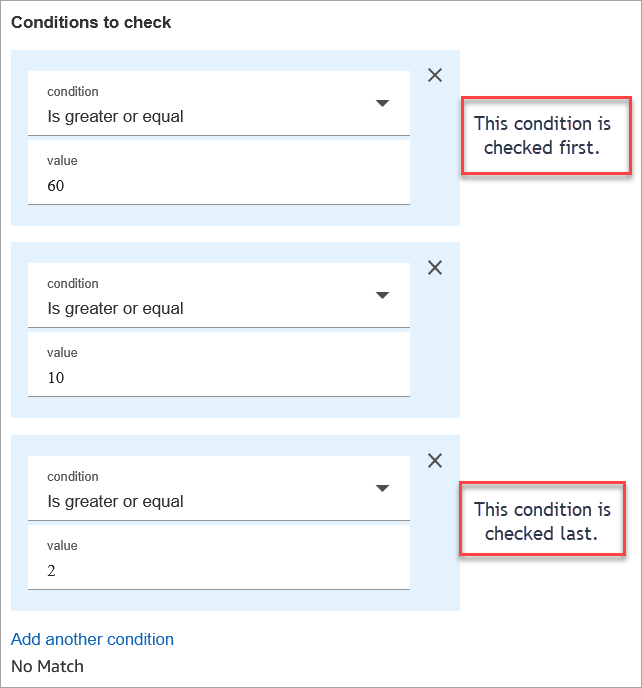
+ If you have multiple conditions to compare, Connect Customer checks them in the order they are listed.
For example, in the following image of the **Check contact attributes** properties page, it is configured so Connect Customer compares the **greater than 60** condition first and compares **greater than 2** last.
+ This block doesn't support case-insensitive pattern matching. For example, if you're trying to match against the word **green** and the customer types **Green**, it would fail. You would have to include every permutation of upper and lower-case letters.
## Configured
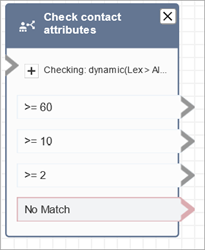
The following image shows an example of what this block looks like when it is configured. It shows the block has four branches, one for each condition: greater or equal to 60, greater to equal to 10, greater or equal to 2, or **No match**.
## Compound conditions per branch
**Note**
Compound conditions are only available in [Amazon Connect Customer](https://docs.aws.amazon.com/connect/latest/adminguide/enable-nextgeneration-amazonconnect.html) instances.
Use compound conditions when a single decision depends on more than one attribute — for example, checking both a customer type and an account balance — without needing separate **Check contact attributes** blocks.
+ Compound conditions within a branch combine multiple individual conditions with the **And** (all must be true) or **Or** (any true) operators.
+ Select **Compound Condition** as the **Condition Type** from the dropdown to use the **And** or **Or** operators.
+ Within a branch, add two or more sub-conditions. For each sub-condition, specify the attribute, the operator, and the value.
+ A branch is taken when its combined condition evaluates to true. Branches are evaluated top to bottom, and the first matching branch is taken. If none match, the **No match** branch is taken.
For example, a single branch can check whether `CustomerType` **Equals** "Premium" **And** `AccountBalance` **Is greater than** 1000.
A block supports up to 10 compound conditions (**And** or **Or**), and each compound condition supports up to 10 sub-conditions.


## Sample flows
Connect Customer includes a set of sample flows. For instructions that explain how to access the sample flows in the flow designer, see [Sample flows in Connect Customer](contact-flow-samples.md). Following are topics that describe the sample flows which include this block.
+ [Sample inbound flow in Connect Customer for the first contact experience](sample-inbound-flow.md)
+ [Sample interruptible queue flow with callback in Connect Customer](sample-interruptible-queue.md)
## Scenarios
See these topics for scenarios that use this block:
+ [How to reference contact attributes in Connect Customer](how-to-reference-attributes.md)
+ [Personalize a contact's experience based on how they contact your contact center](use-channel-contact-attribute.md)