Impromptu Lessons in DRP


TL;DR recovering from a catastrophic hardware failure in the home lab.
Welcome to Part XXI of our ‘Back to the Basics’ series!
Part I: NTDS.dit vs SAM
Part II: Ownership Matters
Part III: Recovering from a Crash
Part IV: Setting up a Simple Honeypot Account
Part V: Automating DC Deployment
Part VI: Sometimes it’s the dumbest thing
Part VII: Merry Christmas, macros, & Base64
Part VIII: Why old 0 Days make great teaching tools
Part IX: PowerShell & PS1s without PowerShell.exe
Part X: Ownership & so called “effective permissions”
Part XI: Windows Event Forwarding & SACLs
Part XII: Poorly planned honeypots & other Bad Ideas
Part XIII: Setting up a simple honey token
Part XIV: Smartcards and Pass-the-Hash
Part XV: Forwarding logs to Sentinel & basic alerts
Part XVI: Automating VM deployments in Hyper-V
Part XVII: Migrating the lab from ESXi to Hyper-V
Part XVIII: Centrally managing Hyper-V & Live Migrations
Part XIX: DACL Primer
Part XX: Setting up a simple honey SPN
Part XXI: Impromptu lessons in DRP
Background
The ‘on prem’ part of our hybrid AD home lab runs on a pair of refurbished HP Proliant DL360 G8 servers. I went over how I automated the setup here and migrated everything from ESXi here. The lab runs entirely on Hyper-V.

Sadly one of them recently suffered a catastrophic hardware failure. That’s the risk you take running on older refurbished hardware. I was able to replace the hardware without losing anything besides a little money buying the replacement HW. I also took the opportunity to tweak and improve my function that automates spinning up and configuring lab VMs.
The HW Failure
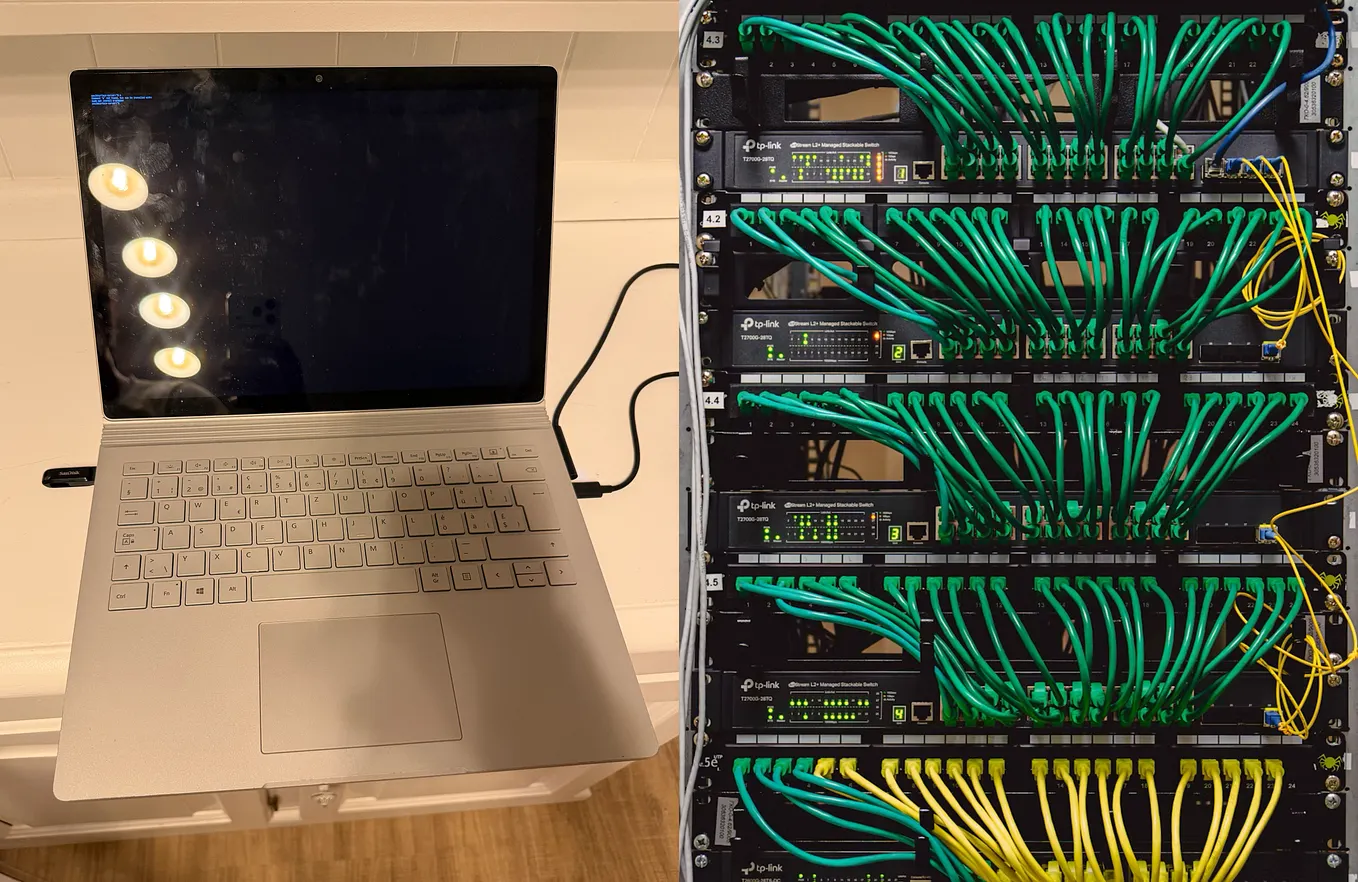
I was banging away in the home lab one night and ServerII, the bottom server in the picture above, suddenly powered off. I didn’t think too much of it initially and figured it was a good time to call it a night. The next morning I turned it back on and it immediately shut itself back down. The nice thing about these HP servers is that the iLO is still accessible after the server shuts down.
I connected to it and saw code 31 HD Controller at critical temperature.

I asked CW6 Google about this specific code on HP ProLiant servers and I found this guy describing the exact same symptoms in 2023.
I opened up the case hoping it was just a dust bunny that got stuck in a fan … and discovered that I had the exact same issue that guy had. HP used plastic screws that are permanently fixed to the motherboard to hold the heatsink in place. These screws can fail, and if they do then the heatsink comes off and the controller and/or MB can get singed before the server can shut itself down.


I feel that guy’s pain, and I’m glad he posted such a detailed explanation. He posted pics just like the ones I took above.
Get Rich’s stories in your inbox
Join Medium for free to get updates from this writer.
The Replacement Server
I poked around on Amazon and found another HP ProLiant DL360 G8 for $230. Since it’s the same model I was able to move the HD over and boot up immediately. I also moved all the RAM over so the replacement server has 256 GB now. This is handy since I run the range on ServerII and split the home lab VMs evenly between the two physical servers for redundancy.
I’m also going to remove all the chassis fans from the failed server and keep them as spares. I’ve had two of those fail on me already in the last 2 1/2 years or so. I removed all the covers for empty HD slots and kept those. I might remove the power blocks as well before I find an e-waste place to dump the remaining shell, and of course I kept the power cords as spares.
An Impromptu Lesson in DRP
I had not however planned redundancy into the share drive on the old ServerII that hosts all the functions I use automating VM creation and configuration in the home lab, as well as all the IaC that creates the range.
I immediately fixed that after booting up the replacement ServerII by enabling DFSR between that share on ServerII and a share on a VM hosted on ServerI. I was going to do DFSR between ServerI and ServerII, but ServerI runs Hyper-V Server 2019 and it’s not really recommended to run anything else on it.
Setting up DFSR
I started out by tweaking my function that creates new home lab VMs. Version 1.0 of this function was pretty rough and included a lot of hard coded IPs, Gateways, subnet masks, etc. I tweaked it so that now
- It’s mostly parameterized functions. New-TestVM calls other functions like ‘Create-VM’, ‘Config-NIC’, and ‘Name-VM’.
- If captures the IP scheme from the Hypervisor itself and then configures the VM to use all the same settings. It sets the last octet according to what’s specified in the command line option ‘-NewVMIP’.
- It captures the username of whoever runs it, prompts for their password, and saves that password in a SecureString to use later to join the VM to the home lab domain. Simply run the function as a Domain Admin, supply the command line options, and go grab a coffee. The VM is up & running, domain joined, and pulling Group Policy when you get back.
New-TestVM -NewVMName "TestFallback" -NewVMIP "106"I then took a combination of CW6 Google and Gemini’s advice to setup DFSR.
#Hyper-V Server doesn't include DFS or DRSR. I will add a new VM named TestFallBack, migrate it to TestFallBack, and then set it up for DFSR & Entra Cloud Sync

Invoke-Command "TestFallBack" {New-Item "C:\VM_Stuff_Share" -ItemType Directory ; New-SmbShare -Name "VM_Stuff" -Path "C:\VM_Stuff_Share"}

# Installs DFSR and DFS Namespace features on both hosts
Invoke-Command -ComputerName TestFallBack, ServerII -ScriptBlock {Install-WindowsFeature FS-DFS-Namespace, FS-DFS-Replication -IncludeManagementTools}
$RGName = "VM_Scripts_RG"
$RFName = "VM_Functions"
$FolderPath = "C:\VM_Stuff_Share"

# A. Create the Replication Group
Write-Host "Creating Replication Group '$RGName'…"
New-DfsReplicationGroup -GroupName $RGName

# B. Add Members (TestFallBack and ServerII)
Write-Host "Adding TestFallBack and ServerII as members…"
Add-DfsrMember -GroupName $RGName -ComputerName TestFallBack, ServerII

# C. Create the Replicated Folder
Write-Host "Creating Replicated Folder '$RFName'…"
New-DfsReplicatedFolder -GroupName $RGName -FolderName $RFName
#Gemini halucated and made up a command that doesn't exist. CW6 Google gave me the right command & syntax
#Set-DfsrFilter -GroupName $RGName -FolderName $RFName -FileFilter @("\ISO\")
Set-DfsReplicatedFolder -GroupName $RGName -FolderName $RFName -DirectoryNameToExclude "ISOs"

# D. Define Content Path for Both Members
Write-Host "Defining content paths for both members…"
Set-DfsrMembership -GroupName $RGName -FolderName $RFName -ComputerName TestFallBack, ServerII -ContentPath $FolderPath -Force

# E. Set ServerII as the PRIMARY Member (Authoritative Source)
# This is the crucial step that designates ServerII as the 'master' for the initial sync.
Write-Host "Setting ServerII as the Primary Member (Master)…" -ForegroundColor Yellow
Set-DfsrMembership -GroupName $RGName -FolderName $RFName -ComputerName ServerII -ContentPath $FolderPath -PrimaryMember $True -Force

# F. Define Connection (Establish the link for replication)
Write-Host "Establishing replication connection…"

# This command automatically sets up a bidirectional connection between the two members
Add-DfsrConnection -GroupName $RGName -SourceComputerName ServerII -DestinationComputerName TestFallBack
Future Small Projects
I’ll tweak New-TestVM.ps1 a bit more in the future. There’s still a few hard coded things in there like the list of DNS servers home lab VMs use, the name of the vSW on my Hypervisor, and maybe one other thing. Ideally I’ll abstract variables out to the point where anyone could run it on their own Hyper-V and automate VM creation without having to change the function itself at all, only the command line options at run time.
I’ll also post my new and improved home lab VM creation & configuration automated setup to GitHub later (Edit to add; it’s here.)
Edit to add; I have since abstracted out anything that was hard coded. The function now captures everything from the hypervisor and the domain\username who ran it so it will work on anyone’s home lab as long as
- Their hypervisor is domain joined
- They use static IPs for their server VMs
- They run the function as a user who has rights both to manage Hyper-V and join systems to the domain
It’s all in a repository on my GitHub here.
Lessons Learned
Practice redundancy! Multiple DCs spread across multiple physical servers, DFSR across at least 2 share drives on two different physical servers, and ditto for VMs that run the Entra Cloud Sync agent.
At least I backed everything up by copy/pasting everything I did to my Google Drive and/or GitHub. I just wasn’t backing it up inside the lab all that well. Live and learn I suppose, and do it at home in the lab where you don’t have angry users asking when it’ll be back up.
Additionally, assumptions can be dangerous. The old ServerII had the exact same NIC names as ServerI … but the new ServerII doesn’t. Hence when I moved the HD into the replacement server and booted up I got some truly strange issues.
I could hookup the crash cart to ServerII and connect out to the rest of the home lab, Google, etc, however I could not connect into ServerII or any of the VMs running on it from ServerI, my desktop, my laptop, etc.
I swapped out the CAT5 cable from the SW to ServerII, no dice. I hooked a second CAT5 cable up from the SW to another NIC on ServerII and that NIC pulled an IP from DHCP and allowed me to connect into ServerII using that IP. However I still couldn’t connect in to any of the VMs on ServerII, and it didn’t answer the question as to why.

After wasting far too much time on Layer 0 I checked the names of the physical NICs on the replacement sever vs ServerI and had one of those “I’m an idiot” moments in IT. Of course HP used different companies to make the components of their servers over time.
The HD I had moved over from the old ServerII to the new ServerII was mapping the vSW to the wrong NIC name, and it was sharing the NIC with the host OS. This was the root cause of all these weird issues I was seeing.
I simply mapped the vSW on the new ServerII to the correct NIC name and everything worked.
Summary
I had been planning on buying another server eventually, but as a third one to try out Proxmox on, not as a replacement for an existing server. Oh well, that is the risk of running on old refurbished hardware that was likely manufactured about 12 years ago. Live and learn, just don’t lose data or your work in the process.

References
HP iLO: https://www.hpe.com/us/en/hpe-integrated-lights-out-ilo.html
Cloud vs ‘on prem’ on cost: https://medium.com/@gdeckler/cloud-vs-on-premises-hard-dollar-costs-67e6fee927d2