


App-V Editor Folder Operations in the Files and Folders Page
Creating new folders
 Use the toolbar button, the “New
Folder” tree/list context menu item or press the Insert key
while the tree control is focused. The folder names must have valid filename specific
ASCII characters only.
Adding an existing folder from the hard-drive
 Use the toolbar button, the “Add
Folder...” tree/list context menu item or press the + key
while the “Folders” panel is focused. The newly added folder with all the
included files, will appear in the selected folder from the left pane.
Setting folder properties
 Use the toolbar button or the
“Properties...” tree context menu item to see the App-V Editor
Folder Properties Tab.
Renaming folders
Use the “Rename” context menu item or press the F2 key. The folder name is of PseudoFormatted type.
Moving folders
Drag and drop the folder(s) to be moved to the target folder.
Removing folders
 Use the toolbar button, the “Delete”
tree context menu item or press the Delete key on a selected folder.
App-V Editor Folder Properties Tab
In this tab you can set folder properties in App-V packages.
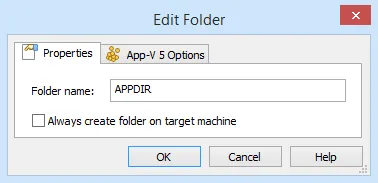

Folder name
Customize the folder's name.
Always create folder on target machine
Always create the folder on the target machine even if it's empty.
App-V 5 Folder Options Tab
In this tab you can set folder options specific to App-V.
In this dialog you can set options specific to App-V for a folder.
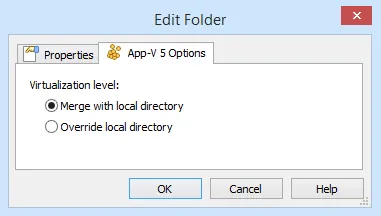

Virtualization level:
Merge with local directory
Enable this option so the virtual application can see this folder from both real and virtual systems.
Overwrite local directory
By enabling this option the virtual application will see this folder only from the virtual system.