


Edit VM Profiles
Virtual Machine Profiles
This page allows you to create and configure the profiles that will be used for virtual machine installations.
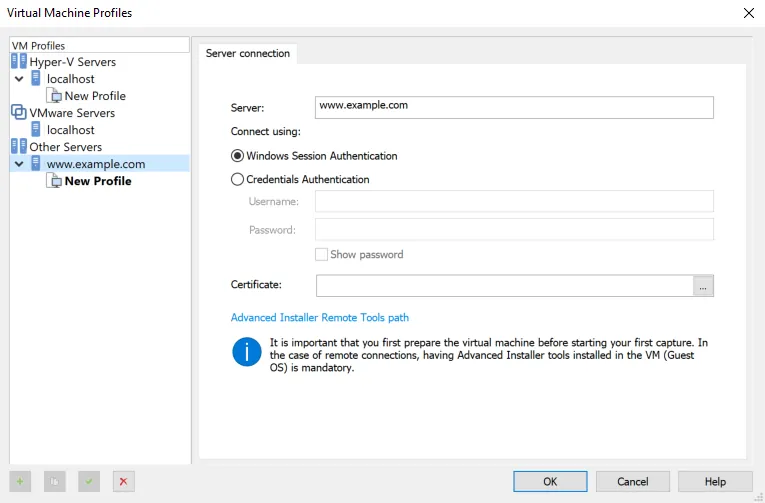

Creating a new server connection
You can connect to remote Hyper-V, VMWare or other hosts in your sub-network. Use the "New Server Connection" context menu option while Hyper-V Servers, VMWare Servers or Other Servers is selected in the left pane, then configure the connection credentials.
For Other Servers options there is a Certificate field in which you must specify the Certificate generated by the Advanced Installer Tools on your virtual machine. This certificate will be automatically installed.
You can follow the Repackaging an installation in Oracle VM VirtualBox article to find how to setup the server.
Creating a new profile
Use the “New” context menu option or press the + key while localhost or another custom defined server connection is selected in the left pane.
Duplicating a profile
Use the “Duplicate” context menu option or press the * key while an existing profile is selected. This option comes in handy when you want to create a profile very similar to exiting one.
Setting a profile as active
Use the “Set as active” context menu option. The profile that is active (current) is the one that will be used for the VM installation.
Deleting a profile
Use the “Delete” context menu option or press the Delete key while a profile is selected.
VM Profile Connection
Configure a VM profile's connection parameters.
Virtualization product
Select if the profile will refer to a VMware or Hyper-V virtualization product.
Virtual Machine
Browse to the configuration file of the virtual machine this profile will point to.
VM snapshots
Select the best-suited snapshot for the profile.
Take a snapshot before starting an operation
By enabling this option, Advanced Installer will take a snapshot each time this profile will be used. It is useful when you want to preserve the virtual machine to a predefined state before it gets altered by the operation.
Revert to previous snapshot after finishing an operation
This option works with the one above and it helps save time by automatically reverting the VM to a predefined state.
Username
Specify the username to log on to the virtual machine in the selected snapshot.
Password
Specify the password to log on to the virtual machine in the selected snapshot.
Show password
The password field is not obfuscated.
VM Profile Options
Configure a VM profile's options.
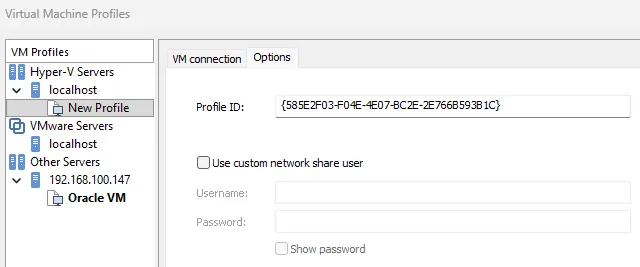

Profile ID
The unique identification number for the profile. This field is read-only.