


I recently needed to detect and stop any of several processes that might be running, and unfortunately, couldn't find any up to date information about how to do it.
Fortunately, I was able to piece this together, so I decided to write the steps here, so it might be useful to others.
(You need a Professional and above installer template for this)
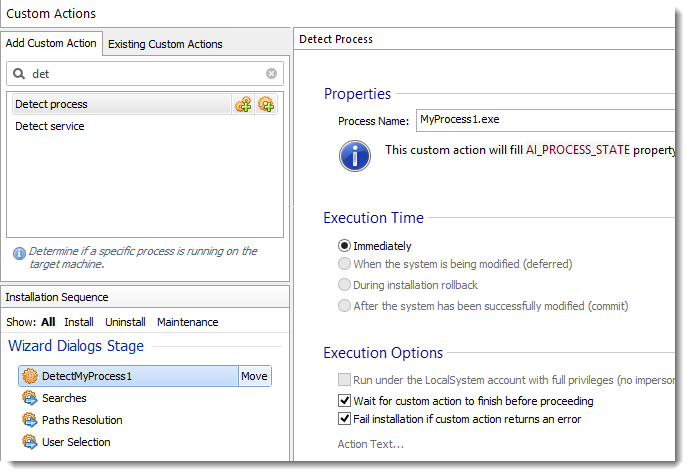
1. Create a new Detect Process custom action, drag it above Searches in 'Wizards Dialogs stage'. In the process name write the name of your process, e.g. 'MyProcess1.exe'. You can also rename the action to 'DetectMyProcess1' or similar.
2. Create a new Set installer Property, and place it below the DetectMyProcess1 action. Set the Property field to MyProcess1Running and the Value to True. At the bottom, set the Condition to
Code: Select all
AI_PROCESS_STATE = "Running"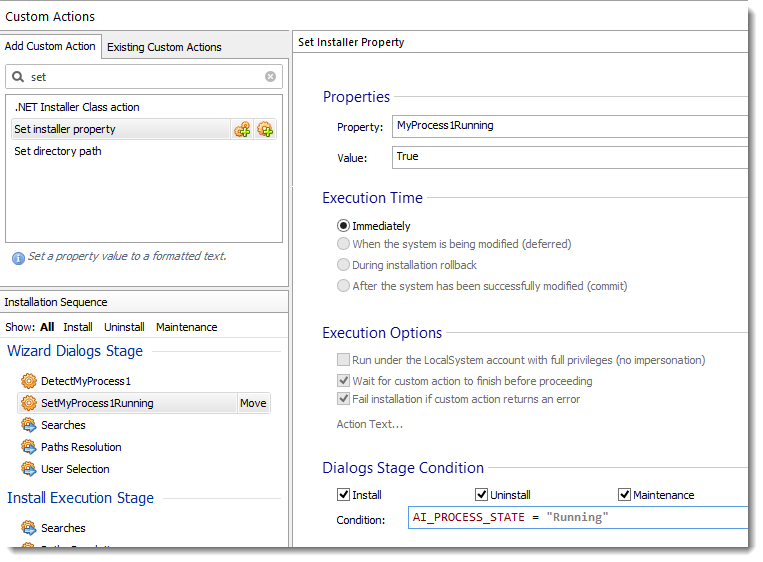
3. Repeat steps 1 and 2 as many times as needed for additional processes. Make sure to give distinct names to Properties (e.g. MyOtherAppRunning, etc).
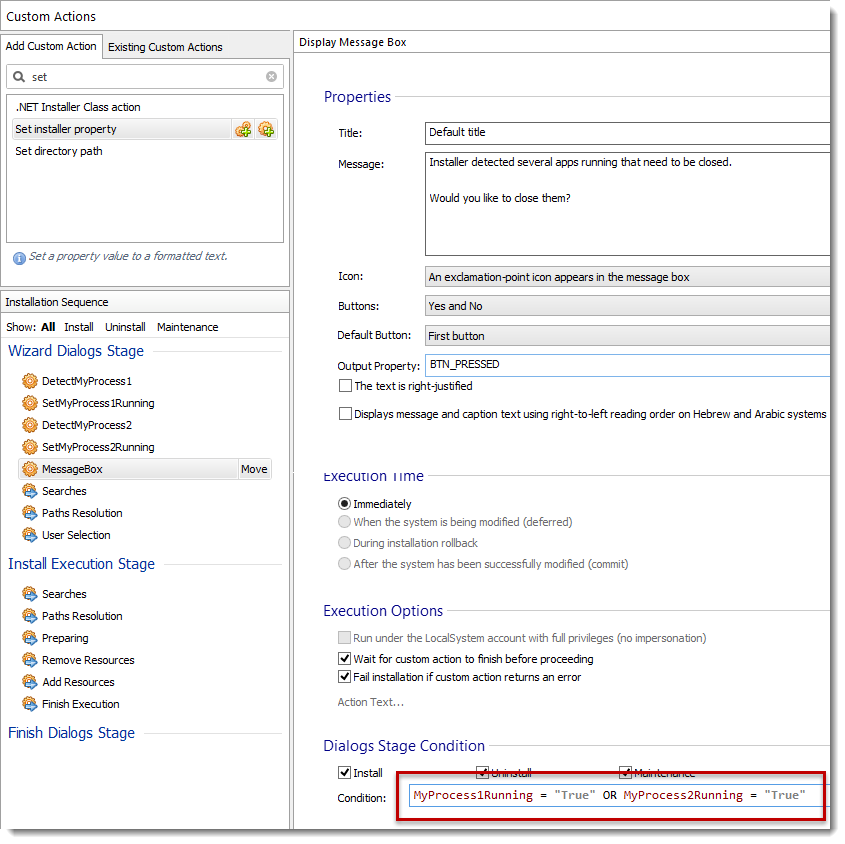
4. Add a MessageBox custom action, set the message text to your liking, and set the Condition to match the property names you've set in step 2 (and 3):
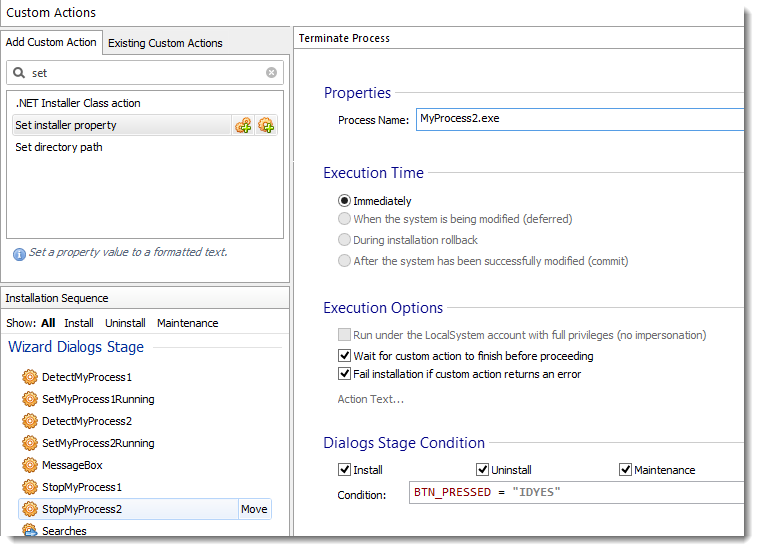
5. Add as many Terminate Process actions as you need (one per each process), set the appropriate process name, and set the Condition to match the pressed messagebox button:
And that's it!
Hope that helps.
Enjoy


FOLLOW US
Get the latest news in Application Packaging