


Account Settings Tab
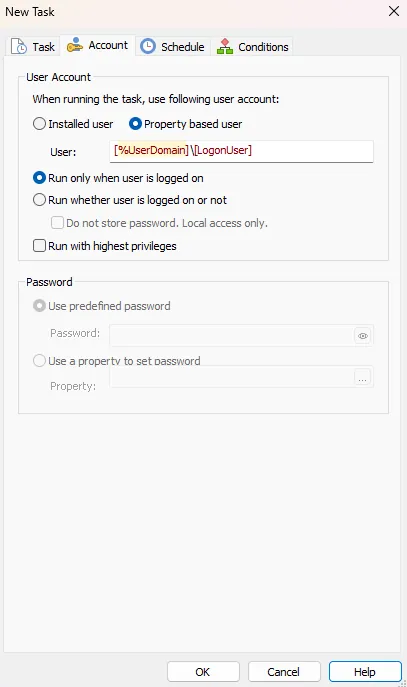

User Account
There are two types of user accounts that can be chosen:
- Installed user - This is an account installed by the current package. You can create it under the Users and Groups page.
- Property based user - This account is present on the target computer.
For "Property based user" type you can specify the account name or the SID of the account under which you want the scheduled task to run. You can also input a group name or the SID of group. (e.g. "S-1-5-32-545" for "Users" group)
 Groups or groups' SIDs are supported only for scheduled tasks configured for Windows Vista or above.
Run only if user is logged on
Sets the task to run only when the user is logged on. In this case you don't need to specify a password.
Run whether user is logged on or not
Sets the task to run when the user is logged on or not.
Do not store password. Local access only.
Check this option to execute the task under the specified user account without saving its password on the system. In this way, the task is strictly confined to local resources and cannot access network assets (such as shared drives, remote databases, or UNC paths). It is the ideal security choice for local scripts and applications, completely eliminating the risk of credential storage on the machine.
Run with highest privileges
Runs the task with the highest privileges the user has. For example if the user is administrator, the task can run with elevated privileges.
Password
If the target account for the task is present on the target computer you must supply a password for it. There are two ways to specify the password:
- Predefined password
- Use a property
You can not schedule a task to run under user accounts that are not password protected.
Also, if you want the task to run under the "System Account" leave the
"User" and "Password" fields empty.