


Updater Cloud Service
Updater Cloud Service
Updater Cloud lets you host and publish your application's updates directly from Advanced Installer. The service hosts the updates configuration file, the corresponding MSI or EXE setup packages, and the signed catalog file when digital signing is enabled. You do not need to upload these files to your own web server.
The Advanced Updater installed with your application reads the cloud-hosted updates configuration file, checks for available updates, and downloads the appropriate setup package when a new version is available.
 To use Updater Cloud, sign in with an Advanced Installer Account that has an
active Updater Cloud subscription or an eligible trial. A 30-day trial is available for new
users.
 Two Advanced Installer project types are involved: the installer project configures the
Updater to use a cloud URL, while the Updates Configuration project defines and publishes
the available updates.
For separate testing and production environments, use different cloud configurations.
This helps you test updates before publishing them to production users.
1. Connect your installer project to Updater Cloud
Open your MSI or EXE installer project and go to the Updater view. Enable to include the Updater with your application.
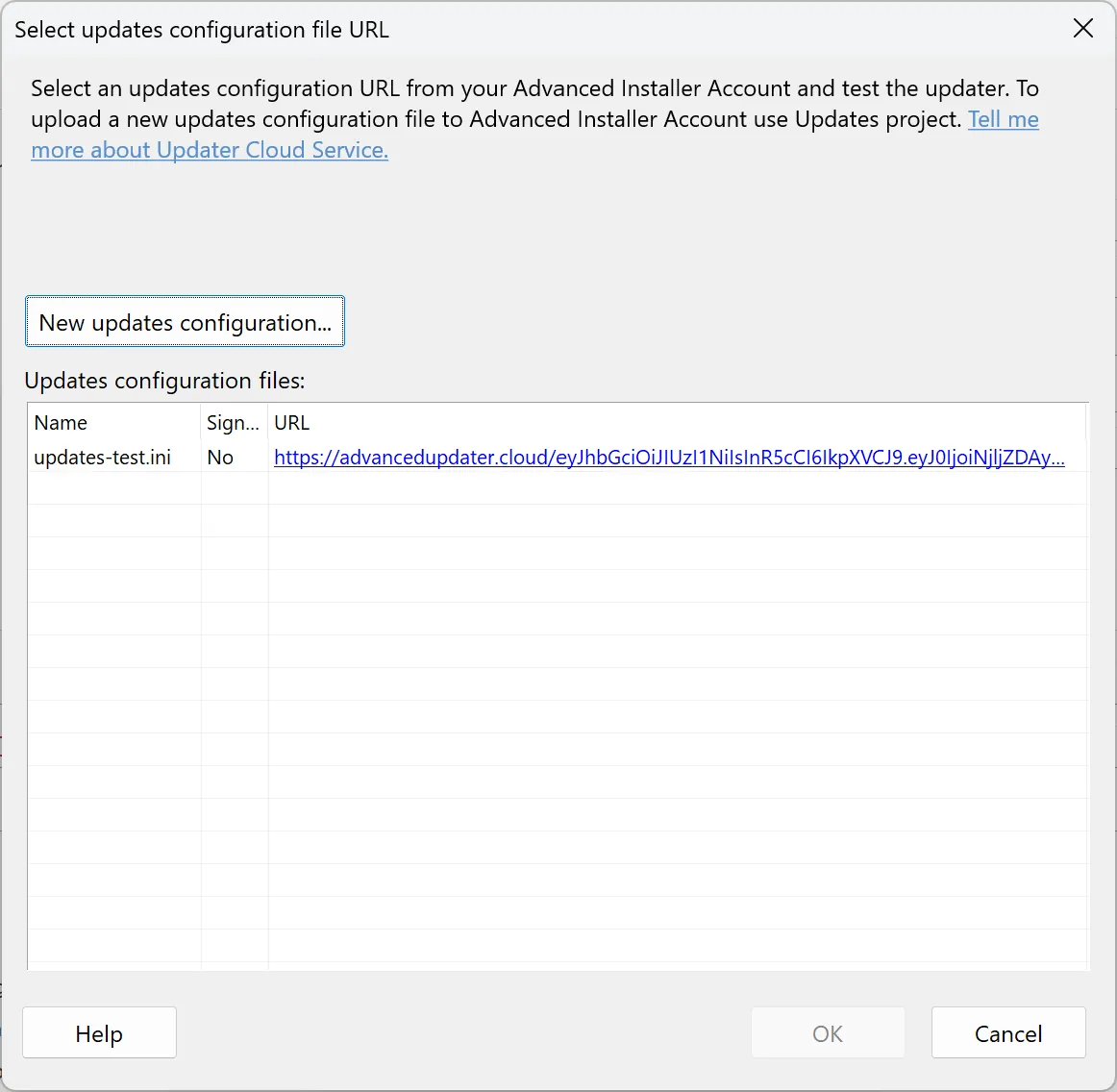
Click on the ribbon toolbar. The dialog lists the cloud configurations available in your Advanced Installer Account. Select an existing configuration and click .
Advanced Installer fills in the field with the selected cloud address. The Updater included with your application will use this URL to check for new updates.
1.1 First-time users: Create a cloud configuration
If your account does not have any cloud configurations, create one from the selection dialog. Enter a recognizable name, such as your application name or a name identifying the environment, and confirm the operation.
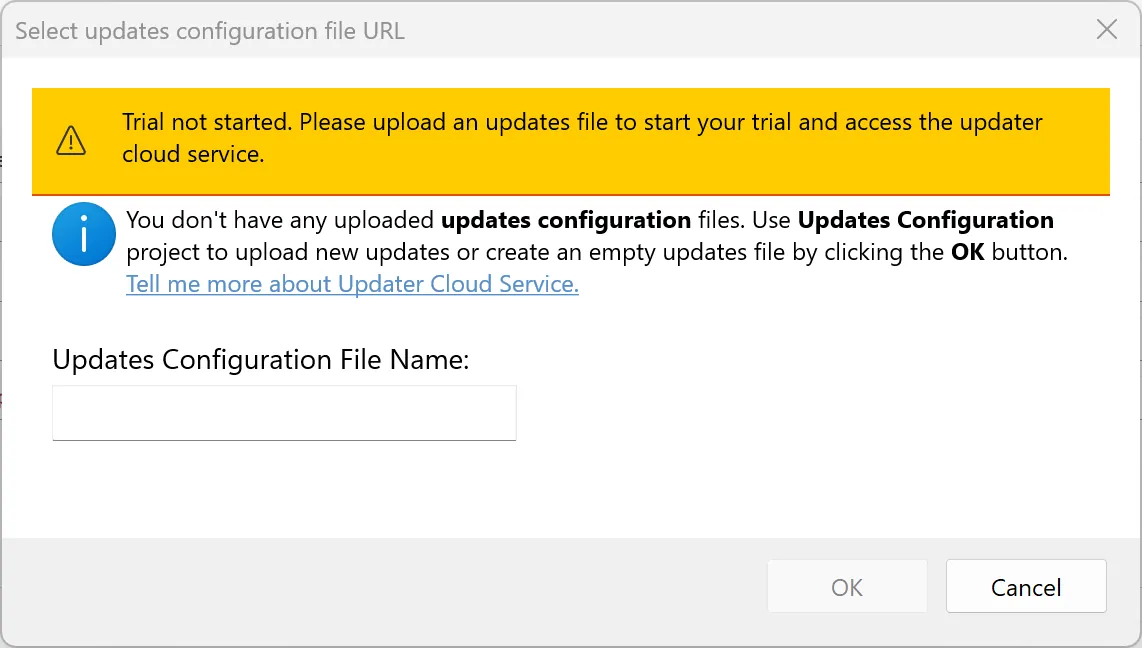
A new cloud configuration provides a location for your application's updates. It does not publish a new application version or create an Updates Configuration project.
Until you publish an update, the new configuration does not offer a newer
application version to the Updater.
2. Publish updates from an Updates Configuration project
When a new version of your application is ready, create or open an Updates Configuration project. Use to add the update and select the MSI or EXE setup package that installs the new version.
Configure the release notes, and other settings e.g. command line as needed.
To publish, click on the ribbon toolbar. Select the cloud configuration used by your installer project.
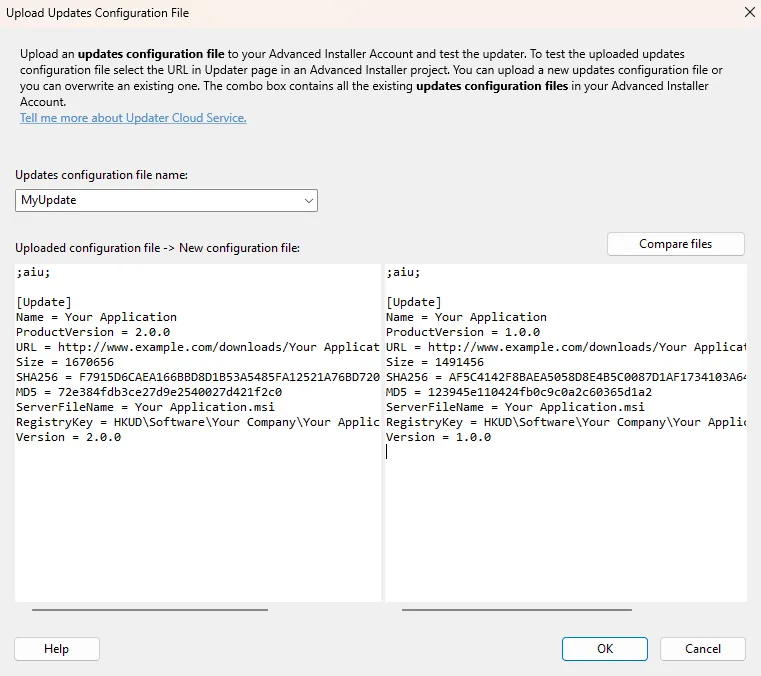
Advanced Installer uploads the updates configuration file and its associated MSI or EXE setup package to Updater Cloud. It also fills in the cloud download URL for the setup package.
If digital signing is enabled in the Updates Configuration project, Advanced Installer generates and signs a catalog file (.cat) for the updates configuration file and uploads the catalog to Updater Cloud.
The upload is started by the command. Building an
installer or an Updates Configuration project should not be confused with publishing its
files to Updater Cloud.
2.1 Compare the current and new updates configuration
When publishing to an existing cloud configuration, use the comparison options in the upload dialog to review the current cloud version and the version you are about to publish. You can view the files side by side or highlight their differences.
Review the changes before replacing a configuration that is already used by installed applications.
2.2 Review the uploaded files
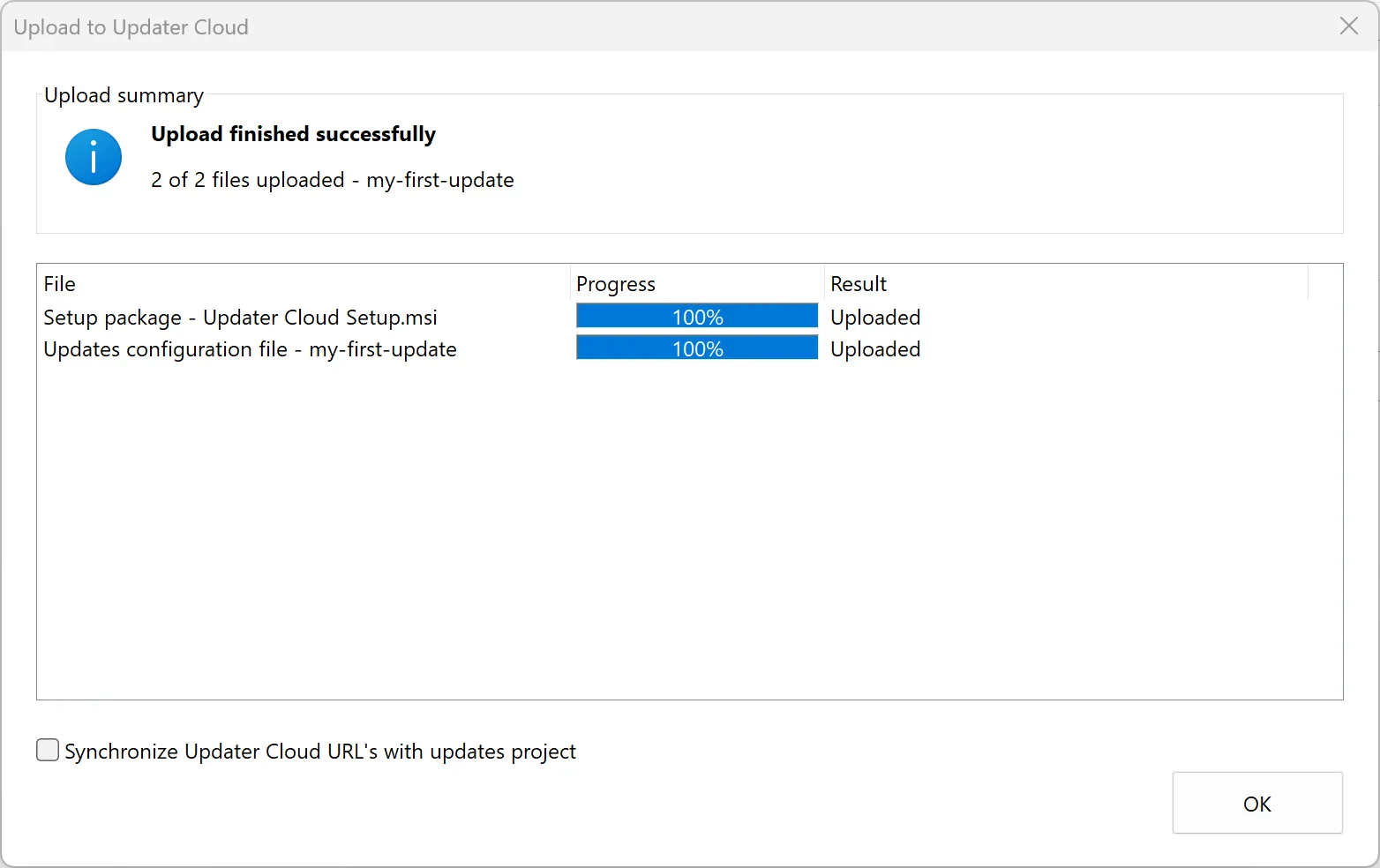
After the upload, review the result for each file: the updates configuration file, the setup package, and the signed catalog when applicable. Confirm that the intended setup package and application version are available in the cloud.
If an upload fails or the result is incomplete, resolve the reported problem and retry before relying on the published configuration for your users.
3. Test the update process
Install the earlier version of your application with Advanced Updater enabled and configured to use your cloud updates configuration. Then run the Updater and check for available updates.
Verify that the Updater detects the intended newer version, downloads the corresponding MSI or EXE from Updater Cloud, and launches the correct installation package.
After installation, confirm that the application version has changed as expected. For signed configurations, also confirm that the Updater can retrieve and validate the associated catalog file.