


Control Data Dialog
This dialog allows you to specify the control data.
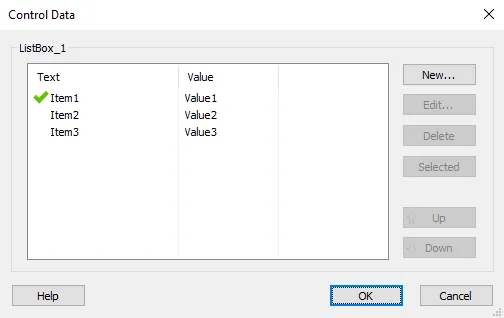

Adding a new item
Use the button, the “New...” context menu item or press the Insert key while the list is focused. The Control Data Row Dialog will be displayed allowing you to add a new item to the list.
Editing an item
Use the button, the “Edit...” context menu item or press the Space key while an element is selected. The Control Data Row Dialog will be displayed allowing you to edit an item from the list.
Deleting an item
Use the button, the “Delete” context menu item or press the Delete key while an element is focused.
Make item selected by default
Use the button or the “Selected” context menu item.
Move items
Use the / buttons, “Up” / “Down” context menu items or press the PageUp / PageDown keys on a selected element.
Control Data Row Dialog
Values
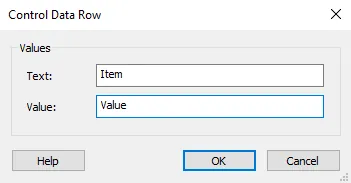

Text
Specify item text.
Value
Specify item value.
These fields are of Formatted Type and can be edited using Smart Edit Control. You can insert a reference to a property.
Icon File
Specify item icon. Use the to select one.
 This option is available only for ListView controls.
Icon Preview
In this field, you can choose the desired icon from the list of available icons. If you want to cancel the selected icon, press the button.