


Script Replacements Tab
This tab enables you to replace certain sections of your script. These replacements can use installer properties and they are executed when the package is built.
 Do not use script replacements in large SQL scripts because this
will seriously affect the execution time. The workaround is to split the
scripts so that replacements are in as few as possible.
Adding a new SQL replacement
Use the button, the “Add...” context menu item or press the Insert key while the list is focused. The SQL Script Replacement Dialog will be displayed allowing you to create a new SQL replacement.
Editing an SQL replacement
Use the button, the “Edit...” context menu item or press the Space key while an element from the list is selected. The SQL Script Replacement Dialog will be displayed allowing you to edit an SQL replacement.
Removing an SQL replacement
Use the button, the “Remove” context menu item or press the Delete key while an element from the list is selected.
SQL Script Replacement Dialog
This page allows you to create an SQL script replacement.
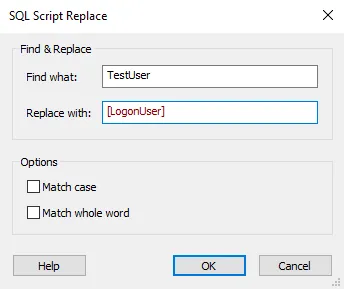
Find & Replace
Find What
Enter the string that you intend to replace.
Replace With
Enter the string that you intend to use as a replacement for the matches to the text entered into the "Find What" text box. This field is of Formatted Type and can be edited with Smart Edit Control.
Options
Match case
Searches only for occurrences that match the combination of uppercase and lowercase characters you enter in the "Find what" edit box and replaces the text with the combination of uppercase and lowercase characters you enter in the "Replace with" edit box.
Match whole word
Makes replacements for only whole words rather than text within words.