


WinGet Tab
 The following article uses options that are available starting with the Professional edition and project type.
In this dialog you can create a WinGet manifest for your EXE, MSI, MSIX and APPX packages.
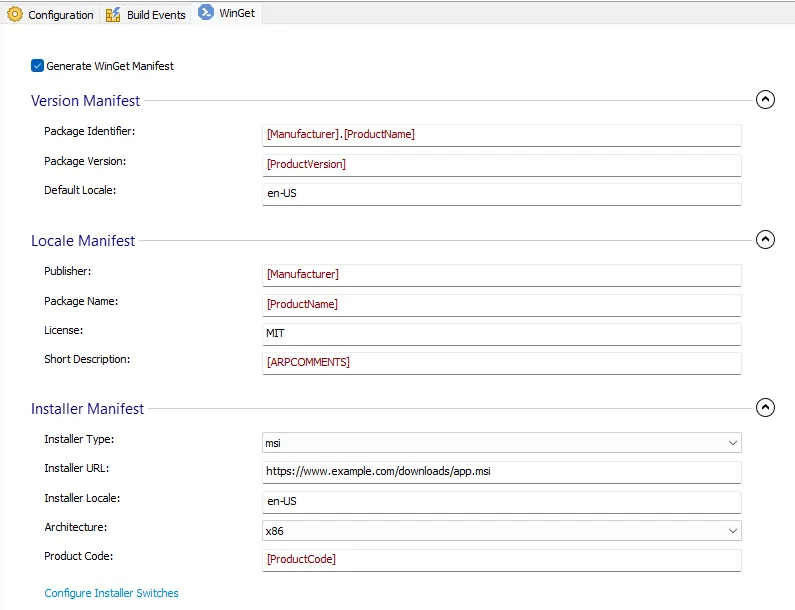

All fields of this dialog are mandatory except for the Install Switches.
 The manifest is a multi-file type (containing three YAML files: Version,
DefaultLocale, and Installer) and will be created during project building in the
following directory:
<build_output_path>/manifests/<first_letter_of_publisher>/<publisher>/<package_name>/<package_version>/<publisher>.<package_name>.<manifestType>.yaml
For more information regarding WinGet manifest files, see this article: Windows Package Manager.
Generate WinGet Manifest
Check this option to generate a Winget Manifest for your package.
Version Manifest
Package Identifier
Specify the package unique identifier.
Package Version
Specify the package persion.
Default Locale
Specify the default package meta-data locale.
Locale Manifest
Publisher
Specify the publisher name.
Package Name
Specify the Package Name
License
Specify the license information for your package.
Short Description
Specify a short description for your package.
Installer Manifest
Installer Type
Specify the type of installer (e.g. msix).
Installer URL
Specify the URL of the package.
Installer Locale
Specify the Locale of the installer (e.g. en-US).
Architecture
Specify the package architecture (e.g. x64).
Product Code
This field is available only for MSI and EXE packages.
Specify the product code of the package.
Configure Installer Switches
This field is available only for MSI and EXE packages.
Click on this hyperlink to open Configure Install Switches Dialog.
Topics
- WinGet Switches Dialog
Configure Installer Switches.